Microsoft Copilot
Connect Microsoft Copilot to Contentsquare with the Contentsquare declarative agent.
Add the Contentsquare MCP server
Section titled Add the Contentsquare MCP serverAlready connected the Contentsquare MCP server to Copilot via Copilot Studio? Replace that connection with the declarative agent below for a better experience.
-
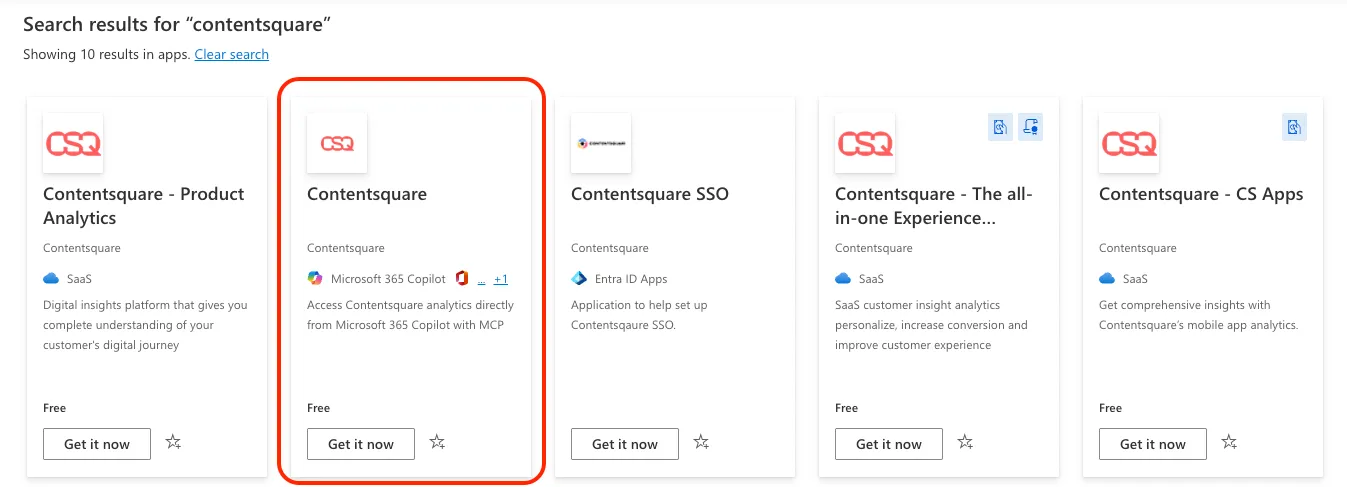
Open the Microsoft marketplace:
https://marketplace.microsoft.com/. -
Search for
Contentsquare. -
Click Get it now on the Microsoft 365 Copilot card.
-
When Teams opens, click Add. Your Microsoft admin may need to approve this.
-
The declarative agent is now ready to use in Copilot and in Teams via Copilot.
-
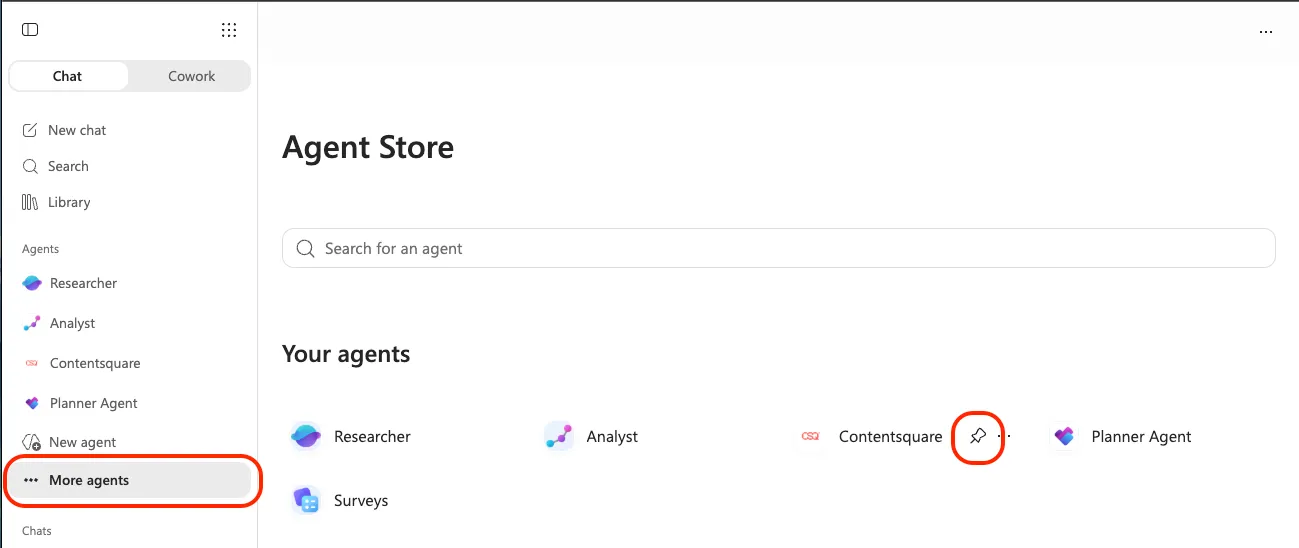
In Copilot, click More agents and pin the Contentsquare agent.
-
Click the Contentsquare agent and type a prompt like
Which projects do you have access to?to trigger authentication. -
In the popup, grant Copilot access to Contentsquare. Enter the name of the account you want to connect.
-
Choose to grant access to your entire account or select specific projects.
-
Click Allow.
Next steps
Section titled Next stepsOnce connected, ask your AI client a question such as "Which projects do you have access to?" to check the connection. See the MCP overview for the other supported clients.