Claude
Connect Claude to Contentsquare to query your experience data in natural language.
Add the Contentsquare MCP server
Section titled Add the Contentsquare MCP serverIn Claude
Section titled In Claude- Navigate to Claude.
- Click Customize in the left sidebar.
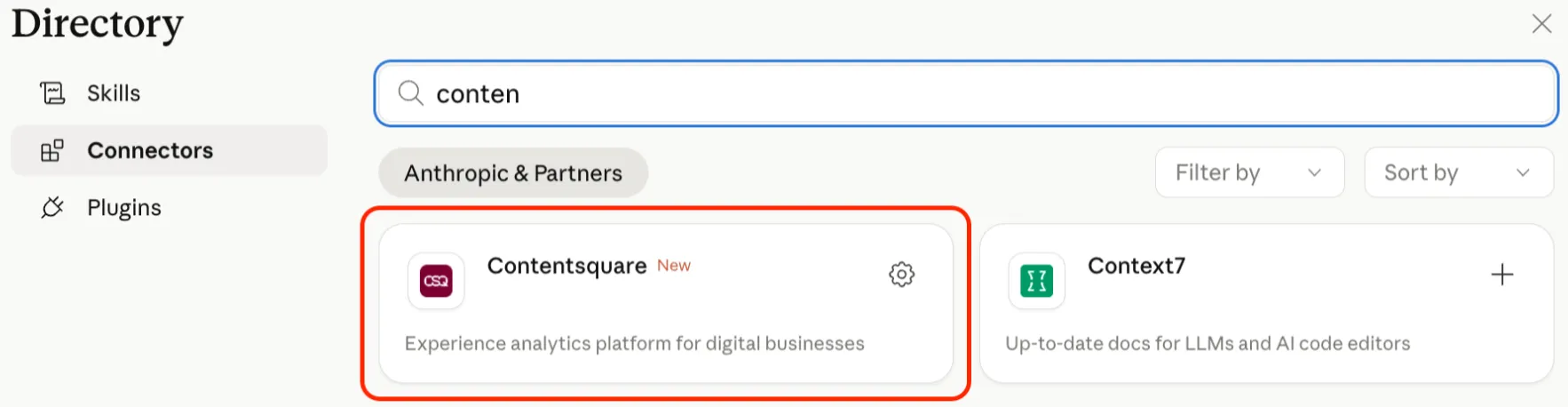
- Select Connectors, then click + and choose Browse connectors.
- Search for
Contentsquareand click on the result. - Click Connect.
- In the popup, grant Claude access to Contentsquare. Enter the name of the account you want to connect.
- Choose to grant access to your entire account or select specific projects.
- Click Allow.
In Claude Code
Section titled In Claude Code-
Run the following command. By default it adds the server for you in the current project only. Add
--scope userto use it in all your projects, or--scope projectto share it with your team in.mcp.json.Terminal window claude mcp add contentsquare --transport http https://api.contentsquare.com/mcp -
In a Claude Code session, run
/mcp, select contentsquare, and choose Authenticate. -
In the popup, grant Claude Code access to Contentsquare. Select the account you want to connect.
-
Choose to grant access to your entire account or select specific projects, then click Allow.
Next steps
Section titled Next stepsOnce connected, ask your AI client a question such as "Which projects do you have access to?" to check the connection. See the MCP overview for the other supported clients.