In-app features
Alongside its tracking capabilities, the SDK embeds some features aimed at Contentsquare users such as Screenshot Capture and SDK Logs.
In order to allow Contentsquare users to enable in-app features in your React Native app, the implementation depends on the native platform.
Android
Section titled AndroidTo enable in-app features within your app, you have to first make sure your app is launched in the background. To do so, start it and press the Android home button. Then, follow the appropriate method described as follows.
On a device: scan the QR code
Section titled On a device: scan the QR codeIf you have access to the Contentsquare platform, you can open the in-app features modal from the menu and scan the QR code with your phone.
On an emulator: use the ADB command

Section titled On an emulator: use the ADB commandIf you are using an emulator, you can use the ADB command to enable in-app features.
If you have access to the Contentsquare platform, you can open the in-app features modal from the menu and select "Copy this ADB command".
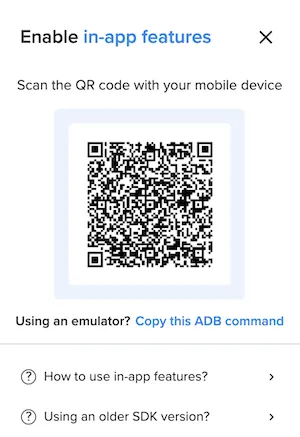
It will look like this:
adb shell am start -W -a android.intent.action.VIEW -d "cs-{{packageName}}://contentsquare.com?activationKey={{uniqueActivationKey}}\&userId={{userId}}"If you don't have access to the Contentsquare platform, you can ask the Contentsquare team to share the link with you.
This implementation phase is required on the iOS side only You will have to do a few changes on the native side of your app:
1. Add the custom URL scheme to Info.plist
Section titled 1. Add the custom URL scheme to Info.plistIn order for your application to open when you scan the QR code or enter the URL we provide in a web browser, you have to add the custom URL scheme to your app's Info.plist file.
You can do this using one of the following methods:
Xcode
Section titled Xcode- Open your project settings
- Select the app target
- Select the
Infosettings - Scroll to
URL Types - Set the URL scheme to
cs-$(PRODUCT_BUNDLE_IDENTIFIER)
Text editor
Section titled Text editor-
Open the
Info.plistof your project -
Add the following snippet:
Info.plist <key>CFBundleURLTypes</key><array><dict><key>CFBundleURLSchemes</key><array><string>cs-$(PRODUCT_BUNDLE_IDENTIFIER)</string></array></dict></array>
2. Call the SDK when your app is opened with the custom URL
Section titled 2. Call the SDK when your app is opened with the custom URLThen, you will need to link your app with our SDK. When your application is started via a deeplink, a specific delegate function is called in your AppDelegate file. In order for us to be able to handle it, you will need to call a function of our API that will handle it.
Call either the React Native or the iOS native API:
Call the React Native API
Section titled Call the React Native APIFollow this guide ↗ to call the React Native API.
import { Linking } from 'react-native';import { CSQ } from '@contentsquare/react-native-bridge';
// Listen for deeplinks while the app is runningLinking.addEventListener('url', (event: { url: string }) => {  CSQ.handleUrl(event.url);});
// Handle deeplink when app is launched via a deeplinkconst initialUrl = await Linking.getInitialURL();if (initialUrl) {  CSQ.handleUrl(initialUrl);}
Enable in-app features
Section titled Enable in-app featuresOnce the implementation is done, in-app features can be enabled in different ways:
Scan the QR code

Section titled Scan the QR codeIf you have access to the Contentsquare platform, you can open the in-app features modal from the menu and scan the QR code displayed with your iPhone.
Use the custom link for simulator

Section titled Use the custom link for simulatorIf you have access to the Contentsquare platform, you can open the in-app features modal from the menu and select "Copy link" (to copy the deeplink) and paste it in Safari on your Simulator to trigger the in-app features.
Using the Terminal
Section titled Using the TerminalIn a Terminal console, open an URL in your current simulator with the following command (replacing CUSTOM_LINK with yours):
xcrun simctl openurl booted "CUSTOM_LINK"Debugging and Logging
Section titled Debugging and LoggingContentsquare provides Logging capabilities that allow you to see the raw event data logged by your app in the macOS Console App, Xcode or in the Contentsquare platform. Use this for validation purposes during the instrumentation phase of development and can help you discover errors and mistakes in your analytics implementation and confirm that all events are being logged correctly.
Viewing local logs
Section titled Viewing local logsBy default, almost all logs are disabled. There is only one log that is always visible to notify that the SDK has started:
-
Start your application, and check logs for this output:
[INFO] CSQ 6.1.0 is attempting to start Digital eXperience Analytics.
In order to enable all logs, activate in-app features. Logging is directly linked to in-app features state: it starts when in-app features are enabled and stops when you disable in-app features.
Viewing logs in the Contentsquare platform
Section titled Viewing logs in the Contentsquare platformTo view logs directly on the platform, you can use Log visualizer. Log visualizer is a helper tool to see SDK logs without logging tools. It requires having platform access for your project and enabling in-app features. See the SDK Log Visualizer Help Center Article ↗ for more information.
Screenshot capture
Section titled Screenshot captureIn order to unlock the full data-visualization capabilities of Contentsquare, the SDK provides a way to capture screenshots of your app screens. These screenshots can only be taken by Contentsquare's users on their device. They are not captured from your end-users device. It means your Personal Data is safe, as long as you use a test user account.

Screenshots are used in the Zoning Analysis module to look at zone-level metrics (Tap rate, Swipe rate...):