Track WebViews
WebView tracking links the CSQ SDK to the JavaScript tag running inside your WebViews to support analytics and Session Replay for web content displayed within your app.
Set up the tag for WebView tracking
Section titled Set up the tag for WebView trackingIf tag auto-injection is enabled for your project, you can skip this step, because the Contentsquare SDK adds the tag to your WebViews for you. Tag auto-injection is currently in beta. If you're not sure whether it's enabled, check with your Contentsquare contact.
If tag auto-injection is not enabled, add the tag to your pages using one of the following methods:
HTML code
To set up the tracking tag on your website, add the following lines of code on every page you want to analyze, either at the end of the <body> tag.
Make sure to add the trackPageview call: without it, your WebView pages are not collected as pageviews.
<script type="text/javascript">  (function () {    window._uxa = window._uxa || [];
    var tag_id = {{YOUR_TAG_ID}};
   function isWebView() {      return navigator.userAgent.indexOf('CS_WebView') !== -1 ||      typeof CSJavascriptBridge != 'undefined' ||      !!window.CS_isWebView;   }
    if (isWebView()) {      window._uxa.push(["setOption", "isWebView", true]);      tag_id = {{YOUR_WEBVIEW_TAG_ID}};    }
    // Required so the page is collected as a pageview    window._uxa.push([      "trackPageview",      window.location.pathname + window.location.hash.replace("#", "?__")    ]);
    var mt = document.createElement("script");    mt.type = "text/javascript";    mt.async = true;    mt.src = `https://t.contentsquare.net/uxa/${tag_id}.js`;    document.getElementsByTagName("head")[0].appendChild(mt);  })();</script>
This code creates a function which adds an asynchronous call to a script and then run the function. This is a way to avoid other elements loading being blocked on the page, and reduces the impact of the tag on your website's performance.
Google Tag Manager (Custom HTML)
If your page loads in both a web and WebView environment, you should use a variable to determine whether the page is running in a WebView context before integrating the tracking tag.
-
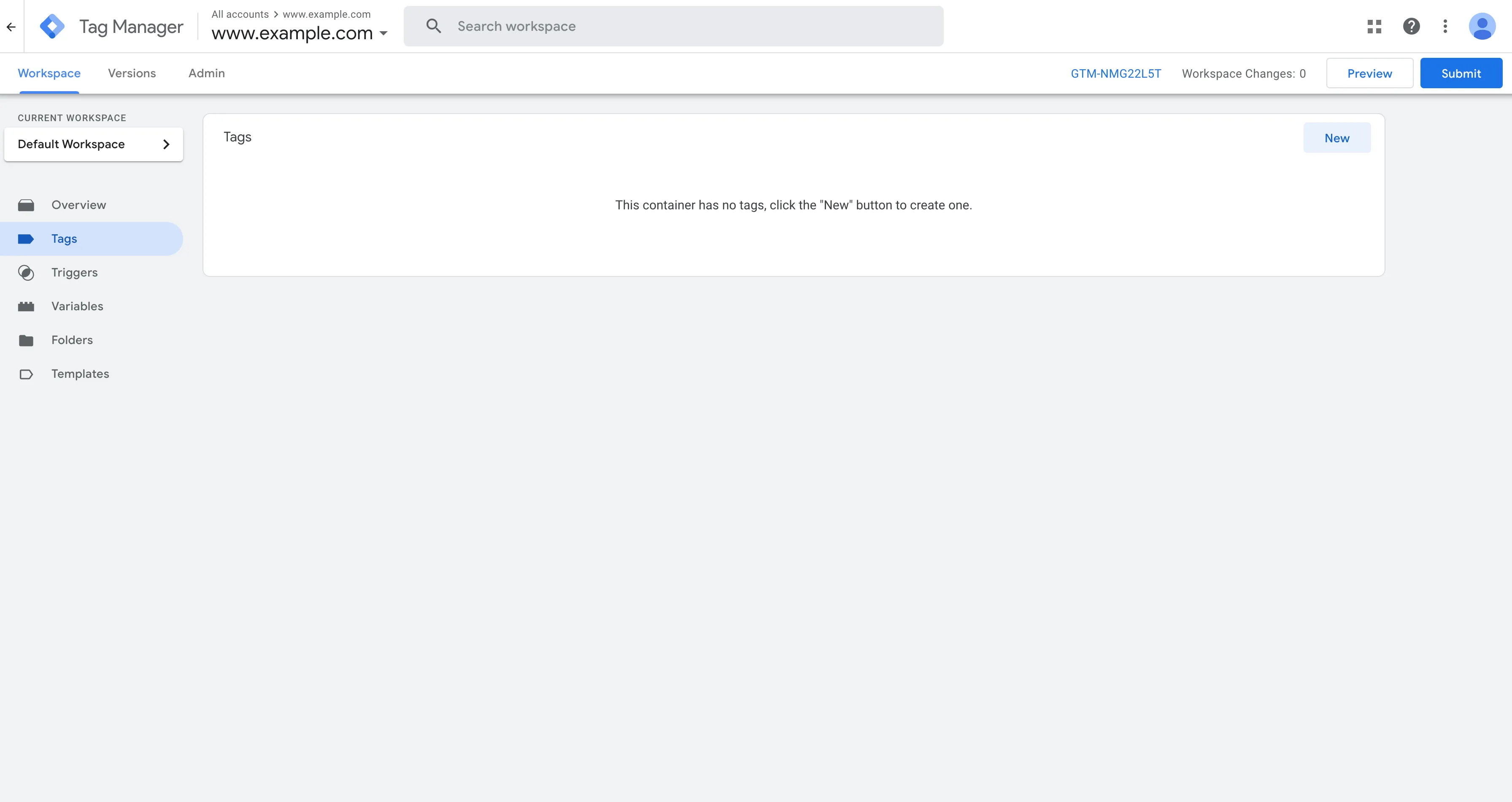
Add a new tag on your workspace.
-
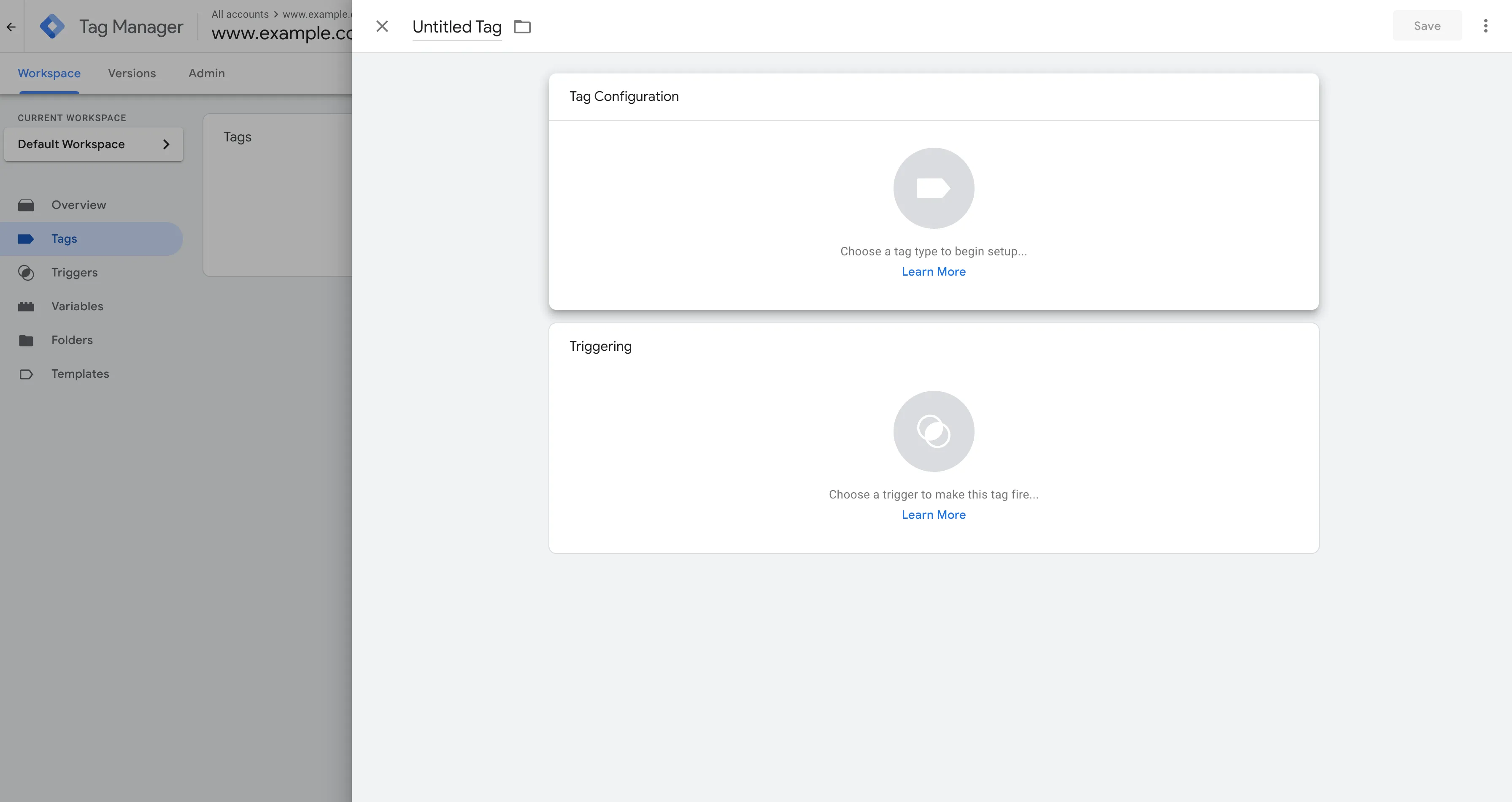
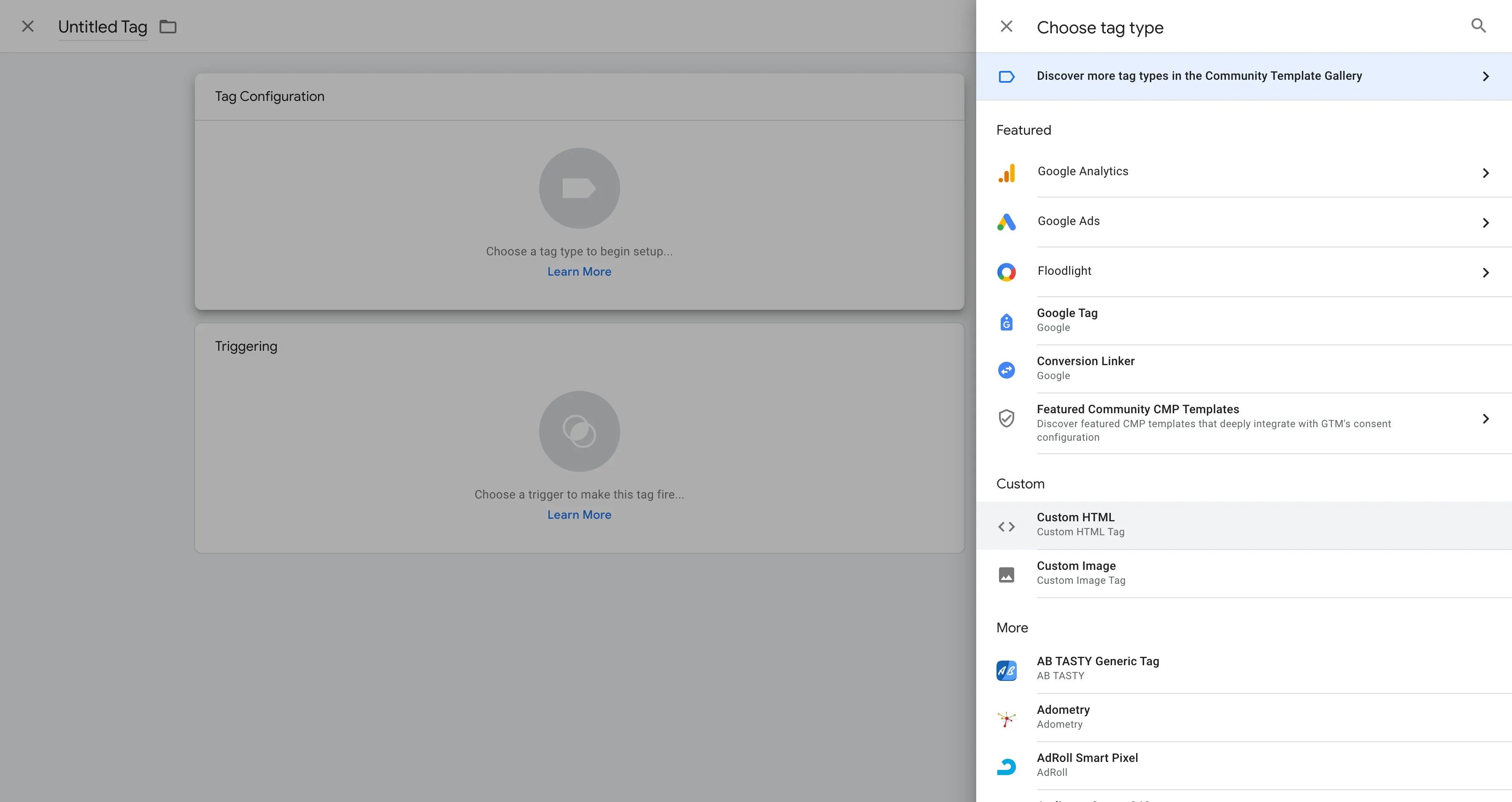
Select "Choose a tag type to begin setup…".
-
In the list, pick the "Custom HTML" tag.
-
Copy and paste the following code in the Tag Configuration HTML section. Make sure to add the
trackPageviewcall: without it, your WebView pages are not collected as pageviews.<script type="text/javascript">(function () {window._uxa = window._uxa || [];var tag_id = {{YOUR_TAG_ID}};function isWebView() {return navigator.userAgent.indexOf('CS_WebView') !== -1 ||typeof CSJavascriptBridge != 'undefined' ||!!window.CS_isWebView;}if (isWebView()) {window._uxa.push(["setOption", "isWebView", true]);tag_id = {{YOUR_WEBVIEW_TAG_ID}};}// Required so the page is collected as a pageviewwindow._uxa.push(["trackPageview",window.location.pathname + window.location.hash.replace("#", "?__")]);var mt = document.createElement("script");mt.type = "text/javascript";mt.async = true;mt.src = `https://t.contentsquare.net/uxa/${tag_id}.js`;document.getElementsByTagName("head")[0].appendChild(mt);})();</script>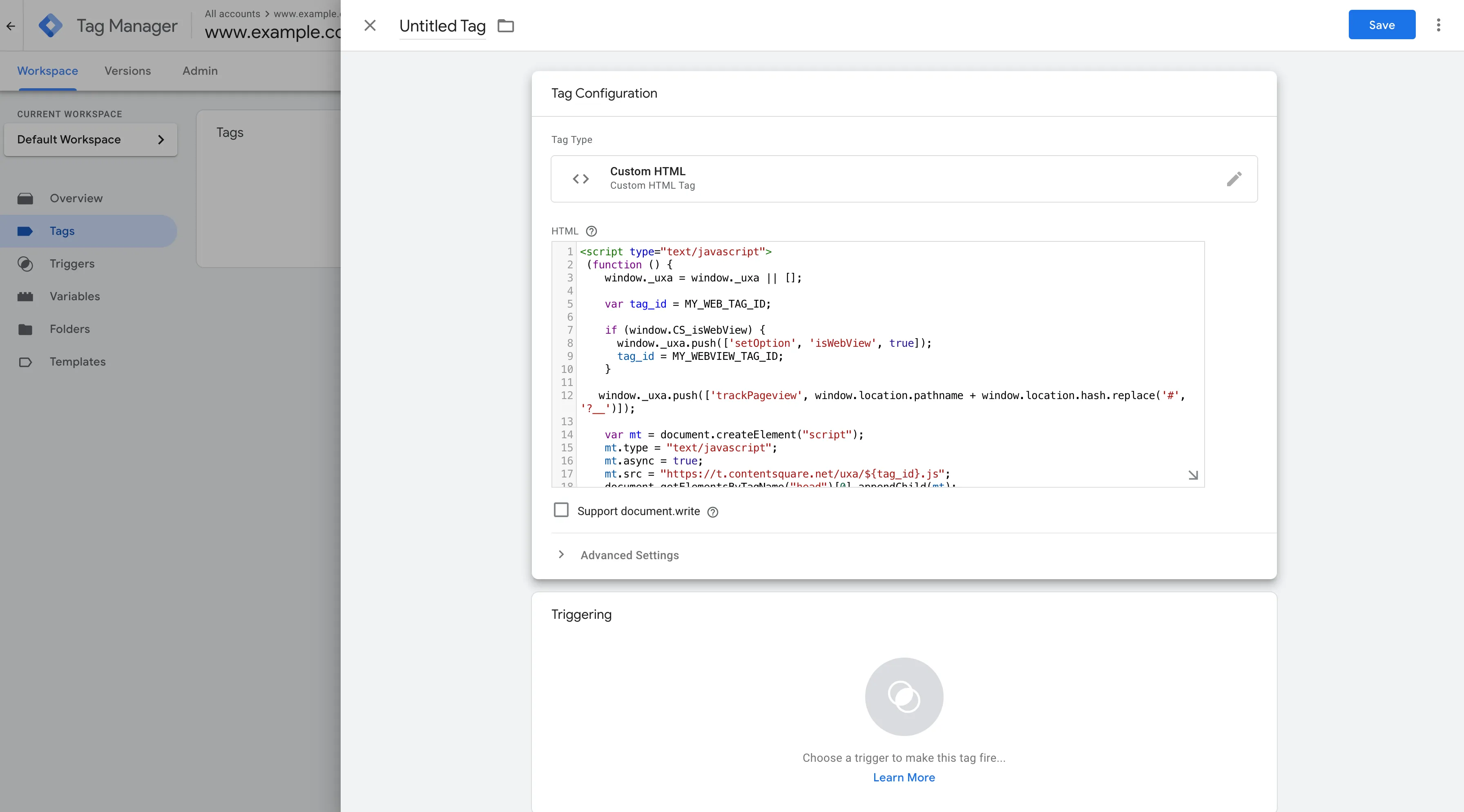
-
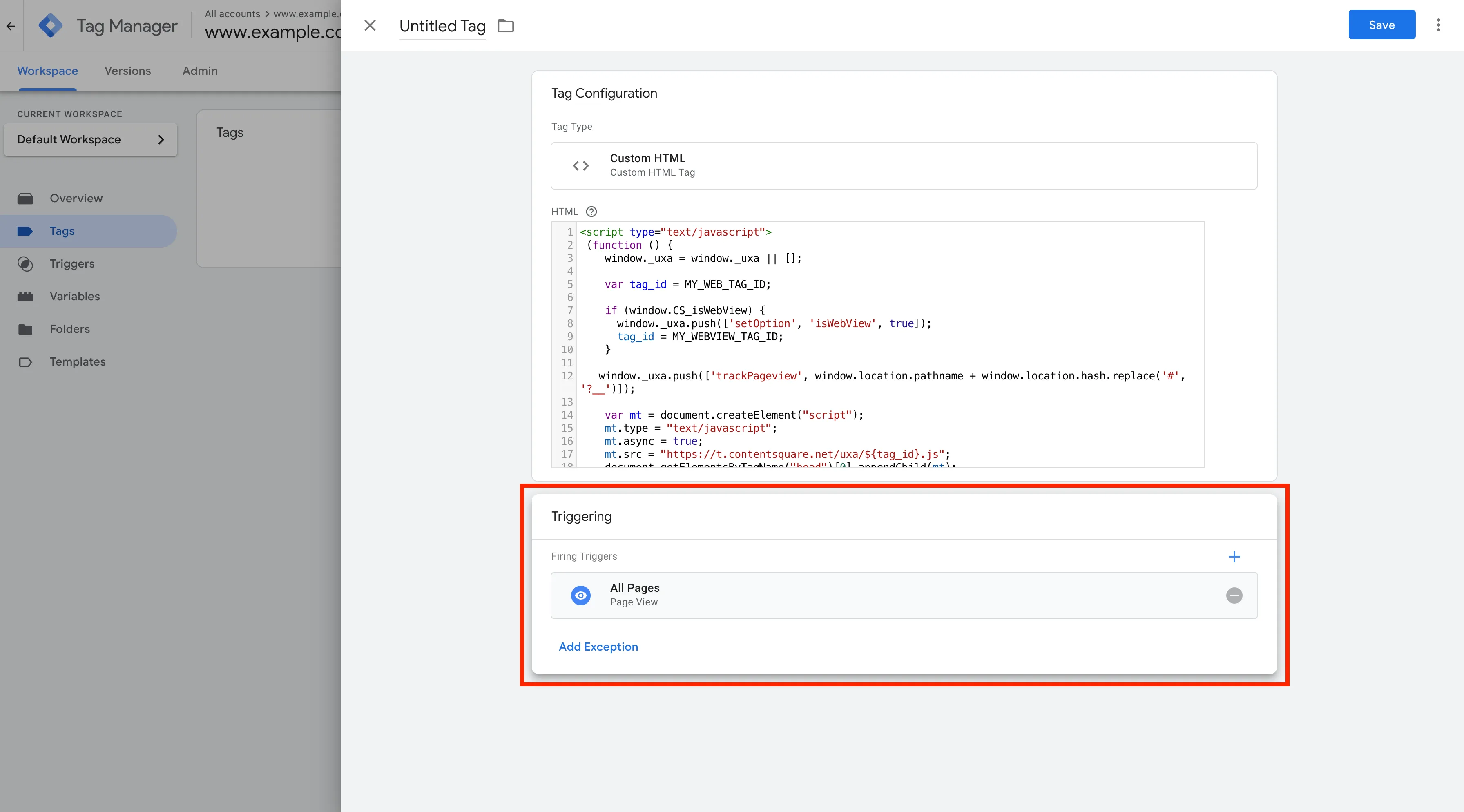
Select "Choose a trigger to make this tag fire…" and pick "All Pages" from the list.
Register your WebViews
Section titled Register your WebViewsMake sure JavaScript is enabled in your WebViews, then wrap each WebView widget with CSQWebViewWrapper to register it. The wrapper handles registration and cleanup for you.
The implementation can be done in two different ways depending on how your WebView allows the injection of scripts. These two different ways relies of two subtypes of WebViewWrapperDelegate:
UserScriptWebViewWrapperDelegateto inject the required Contentsquare script through User Scripts. Choose this if you use theflutter_inappwebviewpackage.JSChannelWebViewWrapperDelegateto inject the required Contentsquare script through JavaScript channel. Choose this if you use packages likewebview_flutterorflutter_webview_plugin.
Examples
Section titled ExamplesThis example uses the flutter_inappwebview ↗ InAppWebView widget.
import 'package:contentsquare/csq.dart';
CSQWebViewWrapper(  delegate: UserScriptWebViewWrapperDelegate(    builder: (BuildContext context, String userScript) {      return InAppWebView(
initialOptions: InAppWebViewGroupOptions( crossPlatform: InAppWebViewOptions( javaScriptEnabled: true, ), ), initialUrlRequest: URLRequest( url: Uri.parse(url), ), initialUserScripts: UnmodifiableListView([ UserScript( // Inject the script properly // by setting the `userScript` as source source: userScript, // Set the injectionTime as AT_DOCUMENT_START injectionTime: UserScriptInjectionTime.AT_DOCUMENT_START, ), ]), ); }, ),)This example uses the webview_flutter ↗ WebViewWidget widget.
import 'package:contentsquare/csq.dart';
webViewController.setJavaScriptMode(JavaScriptMode.unrestricted);CSQWebViewWrapper(  delegate: JSChannelWebViewWrapperDelegate(
    addJavaScriptChannel: (WebViewJSChannelHandler handler) {
      webViewController.addJavaScriptChannel(        handler.channelName,        onMessageReceived: (jsMessage) {          handler.onMessageReceived(jsMessage.message);        },      );    },
builder: (context) { return WebViewWidget(controller: webViewController); }, ),);Optional: detect the WebView context on dual-context pages
If the same page is served both in a regular browser and inside your app's WebView (dual-context tracking), the page usually selects which Contentsquare tag to load with an isWebView() guard. That guard must detect the WebView context before the page's tag script runs — otherwise the browser tag loads instead of the WebView tag (a tag "race condition") and native and web tracking are not linked.
With JSChannelWebViewWrapperDelegate (for example when using webview_flutter), the SDK cannot inject a document-start script, so the reliable early signal is the user agent. Apply handler.userAgent to the controller before loading the URL:
addJavaScriptChannel: (WebViewJSChannelHandler handler) {  // Set the user agent before loading the page so the page  // can detect the WebView context early.  webViewController.setUserAgent(handler.userAgent);
webViewController.addJavaScriptChannel( handler.channelName, onMessageReceived: (jsMessage) { handler.onMessageReceived(jsMessage.message); }, );},Validate WebView tracking
Section titled Validate WebView trackingOn the native side
There is no way of validating the implementation on the native side only.
On the web side
Once you arrive on the screen with the tracked WebView, you should see the following logs in sequence:
-
JS interface injected:
[WebView] Js interface added to the webView -
WebView registered:
[WebView] WebView attached -
Tag configuration received — confirms successful tag to SDK communication:
[WebView JS log] (TAG_CONFIGURATION) [Config] -
Tracking active:
[WebView] onWebViewTrackingReady
Specific logs are then emitted for:
- Page views fired by the WebView Tracking Tag in the same format as for screen views:
Screenview - Screen name: {{page name given}} - Screen number: 11 - Taps and swipes detected by the WebView Tracking Tag in the same format as for defaults taps and swipe but with the target matching an HTML DOM element value:
Tap - Target: {Last view info: div:eq(0)} - Unresponsive: false
Going further: If you still have doubt, you can look for logs by filtering on WebViewEventProcessor. Their presence will confirm that it is well implemented on both web and native sides.
On the native side
Once you open the screen with the tracked WebView in your app, you should see the following logs in sequence:
-
WebView registered:
CSLIB ℹ️ Info: [WebView] Registering WebView on native side for page: [URL]. Waiting for Web Tracking Tag messages… -
Web page loaded:
CSLIB ℹ️ Info: [WebView] Navigated to new page: [URL]. Waiting for Web Tracking Tag messages…
On the web side
Once the Web Tracking tag runs in the web page, you should see the following logs in sequence:
-
JavaScript bridge detected:
CSLIB ℹ️ Info: [WebView] CSJavascriptBridge is detected on page: [URL] -
Tag configuration received — confirms successful tag to SDK communication:
CSLIB ℹ️ Info: [WebView JS log] (TAG_CONFIGURATION) [Config]
Specific logs are then emitted for:
-
Page views sent through the Web Tracking Tag, displayed the same way as native screen views:
CSLIB ℹ️ Info: Screenview - Screen name: "{{page name given}}" - Screen number: 11 -
Taps and swipes detected by the Web Tracking Tag, displayed the same way as taps and swipe on native elements, but the end of the target contains HTML DOM elements:
CSLIB ℹ️ Info: Tap - Target: ...>UIViewControllerWrapperView:eq(0)>UIView:eq(0)>WKWebView:eq(0)|webview|img#picture-holder
Advanced WebView tracking
Section titled Advanced WebView trackingAfter the initial tag setup, the Contentsquare tag in your WebViews can do more: collect user consent, track pageviews and transactions, include WebViews in Session Replay, collect errors for Error Analysis, and send Product Analytics events.
See Advanced WebView tracking for the prerequisites and the full list of topics.