Product Analytics data capture
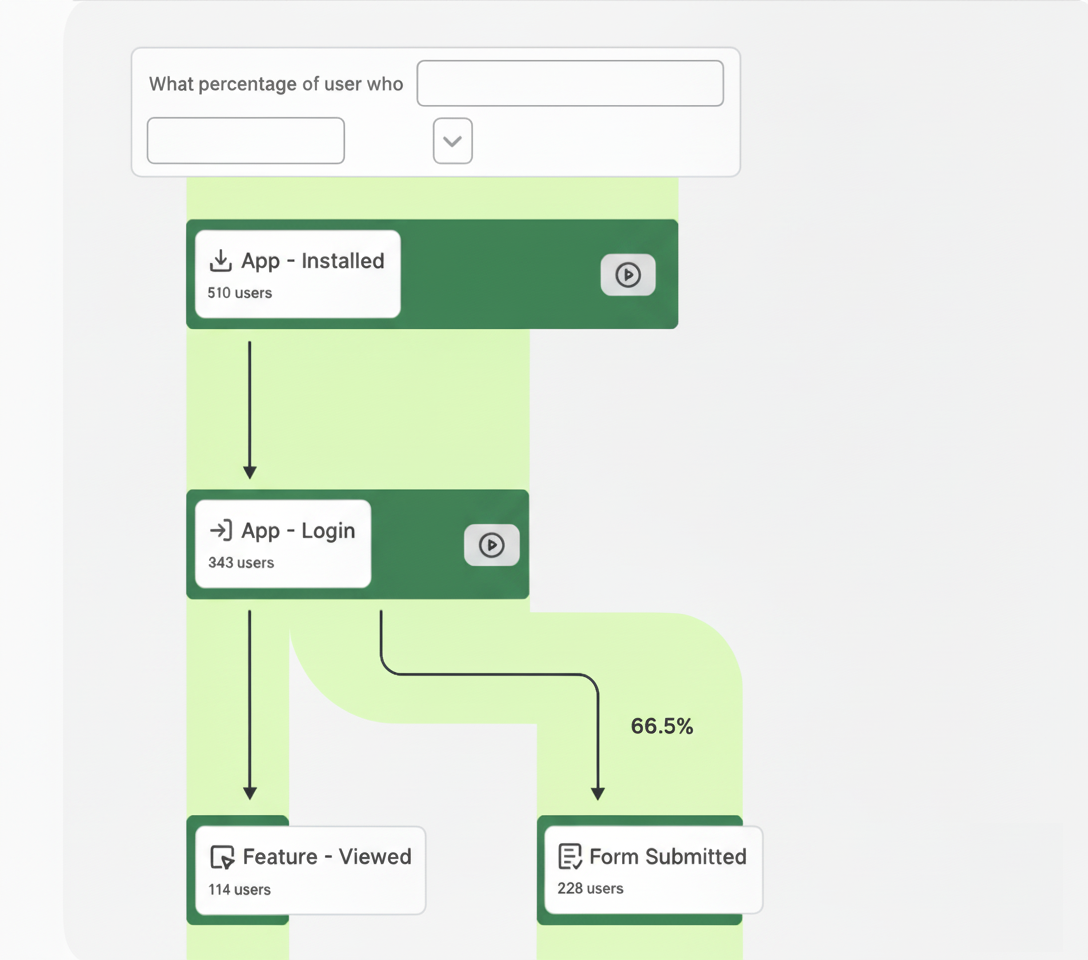
This page instructs how to set up Product Analytics data capture in combination with Experience Analytics.
-
Configure and start the SDK with
CSQ.start().- Product Analytics
- CSQ Experience Platform (Early Access)
Get Early Access to CSQ Experience Platform, our latest, all-in-one offering.
Reach out to your Customer Success Manager to join the Early Access Program.
AppDelegate.swift import UIKitimport ContentsquareSDK@UIApplicationMainclass AppDelegate: UIResponder, UIApplicationDelegate {var window: UIWindow?func application(_ application: UIApplication, didFinishLaunchingWithOptions launchOptions: [UIApplication.LaunchOptionsKey: Any]?) -> Bool {// ...CSQ.start(environmentID: "YOUR_ENVIRONMENT_ID")}}AppDelegate.swift import UIKitimport ContentsquareSDK@UIApplicationMainclass AppDelegate: UIResponder, UIApplicationDelegate {var window: UIWindow?func application(_ application: UIApplication, didFinishLaunchingWithOptions launchOptions: [UIApplication.LaunchOptionsKey: Any]?) -> Bool {// ...CSQ.start(dataSourceID: "YOUR_DATASOURCE_ID")}} -
Enable autocapture with
.enableNativeAutocapture = true.- Product Analytics
- CSQ Experience Platform (Early Access)
Get Early Access to CSQ Experience Platform, our latest, all-in-one offering.
Reach out to your Customer Success Manager to join the Early Access Program.
AppDelegate.swift import UIKitimport ContentsquareSDK@UIApplicationMainclass AppDelegate: UIResponder, UIApplicationDelegate {var window: UIWindow?func application(_ application: UIApplication, didFinishLaunchingWithOptions launchOptions: [UIApplication.LaunchOptionsKey: Any]?) -> Bool {// ...CSQ.start(environmentID: "YOUR_ENVIRONMENT_ID",options: [.enableNativeAutocapture: true])}}AppDelegate.swift import UIKitimport ContentsquareSDK@UIApplicationMainclass AppDelegate: UIResponder, UIApplicationDelegate {var window: UIWindow?func application(_ application: UIApplication, didFinishLaunchingWithOptions launchOptions: [UIApplication.LaunchOptionsKey: Any]?) -> Bool {// ...CSQ.start(dataSourceID: "YOUR_DATASOURCE_ID",options: [.enableNativeAutocapture: true])}} -
(Optional) If your Product Analytics environment is hosted in the EU, set the
baseURLoption to"https://mh.ba.contentsquare.net".- Product Analytics
- CSQ Experience Platform (Early Access)
Get Early Access to CSQ Experience Platform, our latest, all-in-one offering.
Reach out to your Customer Success Manager to join the Early Access Program.
CSQ.start(environmentID: "YOUR_ENVIRONMENT_ID",options: [.baseURL: "https://mh.ba.contentsquare.net"])CSQ.start(dataSourceID: "YOUR_DATASOURCE_ID",options: [.baseURL: "https://mh.ba.contentsquare.net"]) -
Add
.disablePageviewAutocapture = true.- Product Analytics
- CSQ Experience Platform (Early Access)
Get Early Access to CSQ Experience Platform, our latest, all-in-one offering.
Reach out to your Customer Success Manager to join the Early Access Program.
AppDelegate.swift import UIKitimport ContentsquareSDK@UIApplicationMainclass AppDelegate: UIResponder, UIApplicationDelegate {var window: UIWindow?func application(_ application: UIApplication, didFinishLaunchingWithOptions launchOptions: [UIApplication.LaunchOptionsKey: Any]?) -> Bool {// ...CSQ.start(environmentID: "YOUR_ENVIRONMENT_ID",options: [.enableNativeAutocapture: true,.disablePageviewAutocapture: true])}}AppDelegate.swift import UIKitimport ContentsquareSDK@UIApplicationMainclass AppDelegate: UIResponder, UIApplicationDelegate {var window: UIWindow?func application(_ application: UIApplication, didFinishLaunchingWithOptions launchOptions: [UIApplication.LaunchOptionsKey: Any]?) -> Bool {// ...CSQ.start(dataSourceID: "YOUR_DATASOURCE_ID",options: [.enableNativeAutocapture: true,.disablePageviewAutocapture: true])}}