Getting Started with Product Analytics
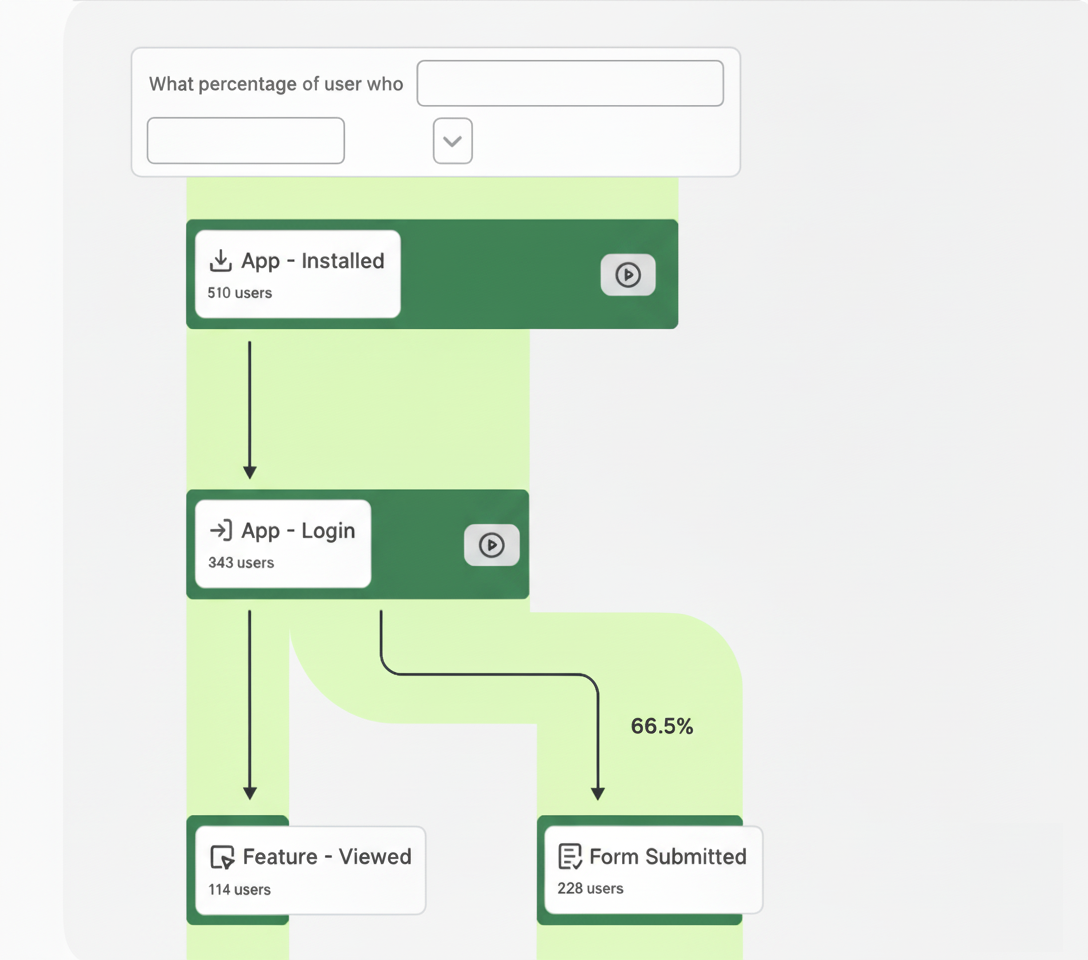
This quick start guide shows you how to get Contentsquare Product Analytics set up in a React Native application.
Once you've completed the setup process, the Contentsquare SDK will capture a wide variety of user interactions in your application with no additional code required.
Install the SDK
Section titled Install the SDKThe CSQ React Native SDK is available as an NPM package ↗, which includes the bridge and the necessary dependencies for specific versions of the SDKs.
To install the CSQ React Native SDK, open a terminal and run the following commands from your application's root directory:
yarn add @contentsquare/react-native-bridgecd ios && pod installnpm install @contentsquare/react-native-bridgecd ios && pod installAdd Autocapture Plugin React Native Bridge
Section titled Add Autocapture Plugin React Native BridgeAdd the React Native Babel Autocapture Plugin to instrument your app code:
In your babel.config.js file, add @contentsquare/react-native-bridge/babel to the plugins array:
module.exports = { presets: ['module:@react-native/babel-preset'], plugins: ['@contentsquare/react-native-bridge/babel'],};Start the SDK
Section titled Start the SDK-
Add your Product Analytics Environment ID using
CSQ.configureProductAnalytics().App.js import { CSQ } from "@contentsquare/react-native-bridge";useEffect(() => {CSQ.configureProductAnalytics("YOUR_ENVIRONMENT_ID");}, []); -
Recommended To capture interactions and screenviews automatically, enable autocapture by setting
enableRNAutocapturetotrue.App.js import { CSQ } from "@contentsquare/react-native-bridge";useEffect(() => {CSQ.configureProductAnalytics("YOUR_ENVIRONMENT_ID",{enableRNAutocapture: true,});}, []); -
(Optional) If your Product Analytics environment is hosted in the EU, set the
baseUrloption tohttps://mh.ba.contentsquare.net.App.js import { CSQ } from "@contentsquare/react-native-bridge";useEffect(() => {CSQ.configureProductAnalytics("YOUR_ENVIRONMENT_ID",{enableRNAutocapture: true,baseUrl: "https://mh.ba.contentsquare.net",});}, []); -
Add a call to
CSQ.start()afterCSQ.configureProductAnalytics().App.js import { CSQ } from "@contentsquare/react-native-bridge";useEffect(() => {CSQ.configureProductAnalytics("YOUR_ENVIRONMENT_ID",{enableRNAutocapture: true,});CSQ.start();}, []); -
Start your application, and check logs for this output:
Terminal window [INFO] CSQ {{SDK_VERSION}} is attempting to start Product Analytics.
Get user consent
Section titled Get user consentThe CSQ SDK treats users as opted-out by default.
Implement the optIn() API to forward user consent to the SDK and generate a user ID.
import React, { useState } from "react";import { View, Text, Button } from "react-native";import { CSQ } from "@contentsquare/react-native-bridge";
const PolicyConsentScreen = () => {  const [isTrackingAccepted, setIsTrackingAccepted] = useState(false);
  const handleAcceptPolicy = () => {    setIsTrackingAccepted(true);    CSQ.optIn();  };
  return (    <View>      <Text>Please accept our privacy policy to proceed.</Text>      <Button title="Accept Policy" onPress={handleAcceptPolicy} />    </View>  );};
export default PolicyConsentScreen;
Once tracking has started, you're able to take full advantage of the CSQ SDK API to identify users, track custom events, and more.
Contentsquare's Product Analytics module will also automatically start tracking a wide range of user interactions, view controller changes, and app version changes without any additional code.
Next steps
Section titled Next stepsOur SDK offers a wide range of features to enhance your implementation, including extended tracking capabilities, and personal data masking.
Session Replay and Error Monitoring are both available with the Experience Analytics Extension, which you can purchase separately.