Track screens
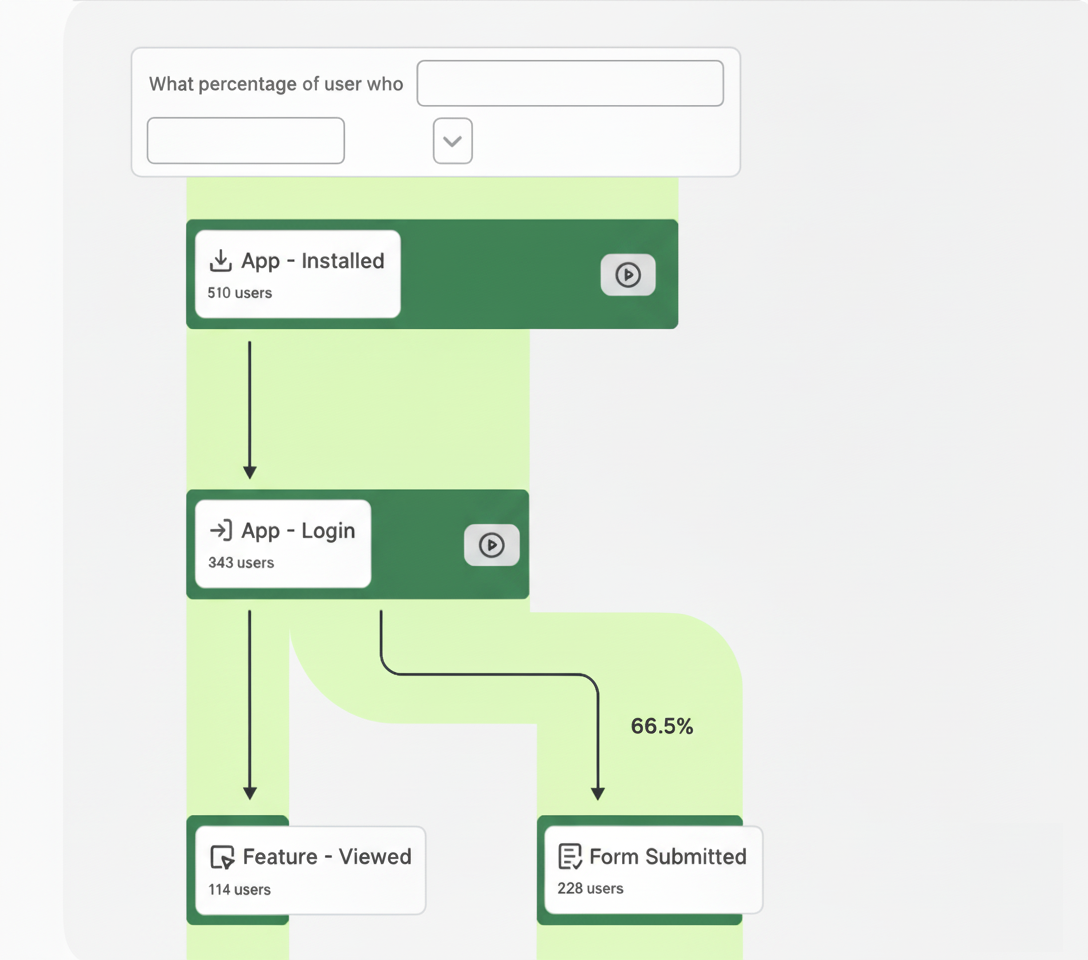
Contentsquare aggregates user behavior and engagement at the screen level. To achieve this, it is necessary to provide a name for each screen by calling a dedicated screenview API.
import { CSQ } from "@contentsquare/react-native-bridge";
CSQ.trackScreenview("ScreenName");
Screen name handling
Section titled Screen name handlingThe screen name is limited to 2083 characters. However, this limit is not enforced by the SDK, but rather by the Contentsquare servers.
Screenview after app in background
Section titled Screenview after app in backgroundThe SDK triggers a screenview automatically after the app is put in background and foreground, as long as a screenview with a screen name has been triggered previously. It will use the last screen name set.
Implementation recommendations
Section titled Implementation recommendationsGeneral rules
Section titled General rulesFrom a functional standpoint, we expect a screenview to be sent when:
- The screen appears on the device
- A modal or pop-up is displayed
- A modal or pop-up is closed, returning the user to the screen
- The app is brought back to the foreground (after being minimized)
When to send your first screenview
Section titled When to send your first screenviewMost events collected by the SDK require a screenview event to be sent first so they can be associated with that screen; otherwise, they will be discarded. If you need to collect events from the moment the app launches, you should trigger a screenview event immediately after the SDK has started:
import { CSQ } from "@contentsquare/react-native-bridge";
CSQ.start();CSQ.optIn();CSQ.trackScreenview("ScreenName");
How to name screens
Section titled How to name screensAs a general rule, keep the number of distinct screen names under 100. Since these names are used to map your app in Contentsquare, choose names that are clear and comprehensive.
Separate words with spaces, dashes or underscores
Section titled Separate words with spaces, dashes or underscoresWhen generating screen names with multiple words, separate them using spaces, dashes, or underscores.
For instance, use Home & Living - Home Furnishings instead of homeLivingHomeFurnishings
Screen name limitations
Section titled Screen name limitationsUse screen template/layout names
Section titled Use screen template/layout namesAs a general recommendation, use names referring to the screen template/layout rather than referring to the specific content (data). This will help:
- To keep the number of distinct screen names low and therefore make Contentsquare easier to use
- Remove the risk of sending Personal Data to Contentsquare
List of screen types falling into that category: Product detail, Event detail, Conversation/Chat, User profile, and so on.
Screens with multiple states/layouts
Section titled Screens with multiple states/layoutsScreens can have different layouts or states depending on the user context. In this case, append its value to the screen name.
Home screen
| State | Screen name |
|---|---|
| App landing layout | Home |
| Women products layout | Home - Women |
| Men products layout | Home - Men |
| Sales layout | Home - Sales |
Product Detail screen (PDP)
| State | Screen name |
|---|---|
| Users on a Top for Women PDP | PDP - Clothing - Women - Tops |
| Users on a Microwave PDP | PDP - Kitchenware - Electrics - Microwave |
| Users on a Hotel details screen | PDP - Holiday type - Season - Board |
User account screen
| State | Screen name |
|---|---|
| Overview | My Account - Dashboard |
| Order history | My Account - Order history |
| Returns | My Account - Returns |
Search screen
| State | Screen name |
|---|---|
| Search | Search |
| Search results for "Skincare" products | Search - Skincare |
| Search results error screen | Search - Error |
Cart screen
| State | Screen name |
|---|---|
| Empty cart | Cart - Empty |
| Items have been added to the cart | Cart - Populated |
| Issues with availability or pricing | Cart - Error |
Checkout screen
| State | Screen name |
|---|---|
| User provides name, surname, and date of birth | Checkout - User Details |
| User provides shipping address | Checkout - Shipping Details |
| User inputs their credit card information | Checkout - Payment |
How to track sessions & screen metadata
Section titled How to track sessions & screen metadataCustom Variables
Custom variables are designed to provide additional details about the screenview or user information during end-user engagement. These variables can encompass various aspects, including screen-specific attributes or user-related information, and serve as a means to enhance data collection and analysis.
Example:
- Product name: "Acme Widget"
- Product color: "red"
- Product price: "$19.99"
Learn how to setup Custom Variables
Dynamic Variables
Dynamic variables are used to provide additional information on the session, such as the name of a campaign or the version of a variation for an A/B test integration. They can be sent at any time during a session and do not require sending a screenview. Note that dynamic variables should be used only in segments.
Example:
- Campaign name: "Summer Sale 2023"
- Variation version: "Version A"