Session Replay
Session Replay enables replaying real sessions to observe how users interact with your product, by capturing screen content - including text and images - as users navigate your mobile app. For more details, see Introduction to Session Replay for Apps ↗ in the Help Center.
Starter guide
Section titled Starter guidePrerequisites
Section titled PrerequisitesUpdate to latest SDK version
Section titled Update to latest SDK versionIn order to enable Session Replay in your app and get the most stable version, it is required to upgrade the SDK to its latest version.
Implement screen tracking
Section titled Implement screen trackingEnsure screen tracking is implemented, since Session Replay collection starts at the first screenview event. See Track screens.
Handle User consent
Section titled Handle User consentEnsure user consent is handled for Contentsquare data collection, especially if you're implementing the SDK for the first time. See Privacy section.
Configure Session Replay masking
Section titled Configure Session Replay maskingMasking behavior
Section titled Masking behaviorBy default, the Contentsquare SDK is configured to mask all content displayed on the user interface (UI) to prevent unnecessary data collection. For more details, see what a fully masked screen looks like in Masking mechanisms.
For testing purposes, we advise you to unmask all the content by setting the default masking status to false.
For more granular control in deployment mode, you can use the SDK public masking APIs to fine-tune exactly which elements remain masked.
Configure Webviews (optional)
Section titled Configure Webviews (optional)If your mobile app includes Webviews, specific implementation steps are required to ensure they are properly reflected in Session Replay:
- Implement Webview tracking
- Handle personal data within WebViews
Configure UIKit custom fonts - iOS only
Section titled Configure UIKit custom fonts - iOS onlyTo ensure UIKit text elements are rendered in Session Replay exactly as they appear in your app, you can add fonts in otf, ttf, woff, or woff2 formats directly from the player. See Managing iOS Fonts In The Player ↗ in the Help Center documentation.
Test your setup
Section titled Test your setupEnable Session Replay on your device
Section titled Enable Session Replay on your deviceIf the Session Replay sampling rate is less than 100%, only a portion of sessions are collected. To ensure data collection on your device for testing and debugging purposes, you can force it from the In-app Features settings by following these steps:
- Enable in-app features
- Open in-app features settings with a long press on the screenshot button
- Under "Session Replay", toggle "Enable Session Replay" on
- Kill the app
- Start app, a new session is starting with Session Replay enabled
How do I know if Session Replay is enabled?
Section titled How do I know if Session Replay is enabled?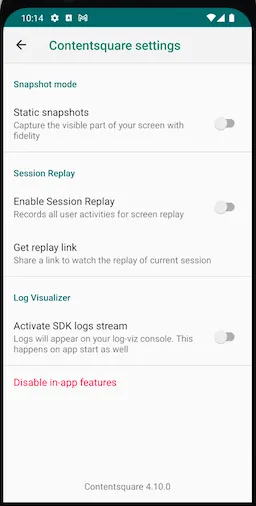
There are 2 places where you can check if Session Replay is enabled:
In the logs: The log I/CSLIB|SessionReplay: Starting Session Replay. will confirm that Session Replay is enabled.
In in-app features settings: Below the "Enable "will start at next app start" (see below Access the replay), you will either see:
No replay link availablewhich means Session Replay is not running for the current sessionGet Replay linkwhich means Session Replay is running for the current session
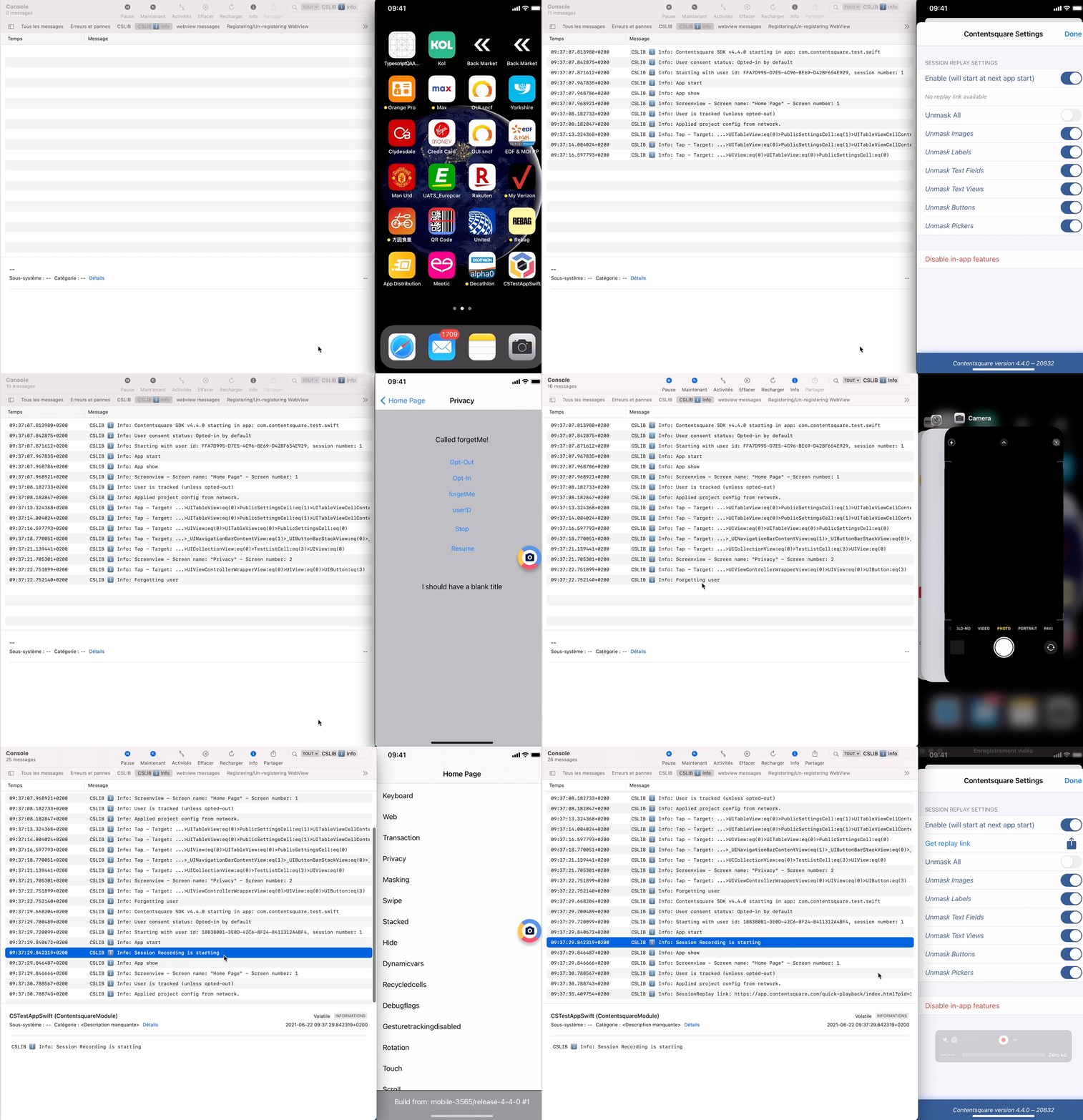
There are 2 places where you can check if Session Replay is enabled:
In the logs: The log Session Recording is starting. will confirm that Session Replay is enabled.
In in-app features settings: Below the "Enable "will start at next app start" (see below Access the replay), you will either see:
No replay link availablewhich means Session Replay is not running for the current sessionGet Replay linkwhich means Session Replay is running for the current session
Access the replay
Section titled Access the replayThe replay can be accessed by tapping on Get replay link button from the in-app features settings:

The replay will be available within 5 minutes. Only the "ended screen views" are processed (we know a screenview is ended when we start receiving data for the next screenview). This means that you will be able to replay your session up to the previous screenview if the session is still running.
The session can be accessed by tapping on Get replay link button from the in-app features settings:

The replay will be available within 5 minutes. Only the "ended screen views" are processed (we know a screenview is ended when we start receiving data for the next screenview). This means that you will be able to replay your session up to the previous screenview if the session is still running.
Personal Data Masking
Section titled Personal Data MaskingThe Session Replay feature replays every interaction of your users with your app. To respect the user’s right to privacy, the Contentsquare SDK:
- Masks everything by default
- Allows you to control which part of the user interface is collected via our Masking rules
Masking mechanisms
Section titled Masking mechanismsAlthough the implementation is done once for both iOS and Android on React Native, the visual appearance of the masking itself will be different for each platform:
Every single UI element is converted into a highly pixelated image to reach a very low resolution. Text and images will appear very blurry so that the content cannot be identified.
Original VS Replay fully masked
Section titled Original VS Replay fully masked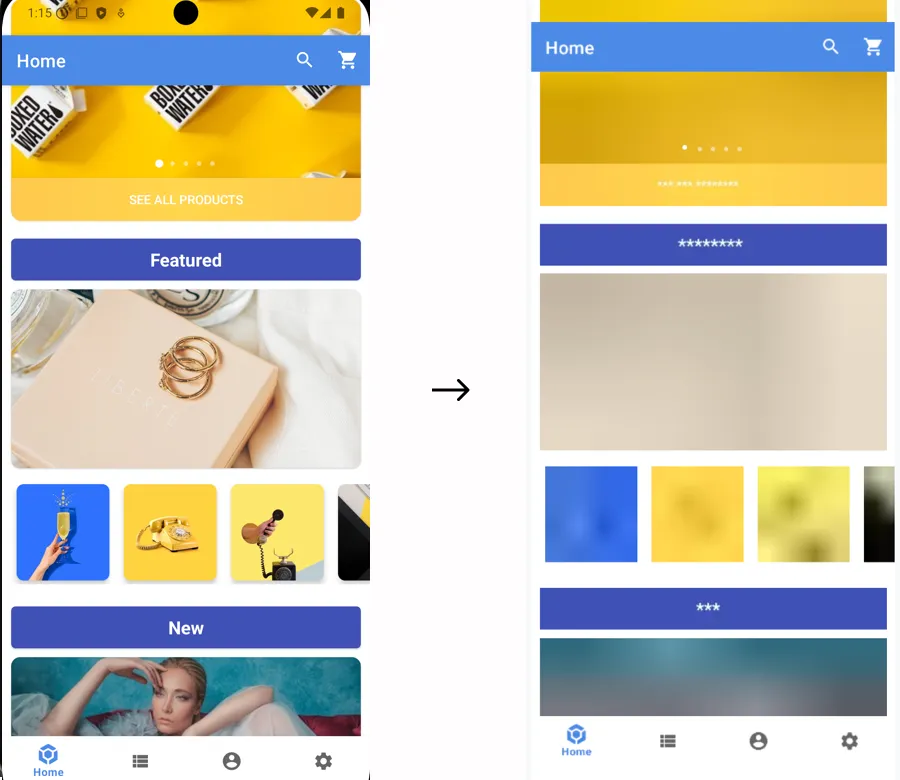
- Images are not collected, a placeholder is sent instead of the content; the "IMG" placeholder will be displayed in the frame of the element.
- Text: text is replaced by "la" repeated as many times as needed to equal the original character count. White characters are preserved. For instance
the lazy foxis collected aslal lala ala. All other visual properties are collected (text color, background color, alignment, etc.). - TextFields: same as Text
- For all other types: no specific data is collected but visual properties are collected. If you think a specific element can reveal personal data from one of these properties you have to mask it using one of the methods presented below. A good way to check how a view is rendered in replays is to navigate to the desired view with the CS SDK running then use the quick replay link.
Original VS Replay fully masked
Section titled Original VS Replay fully masked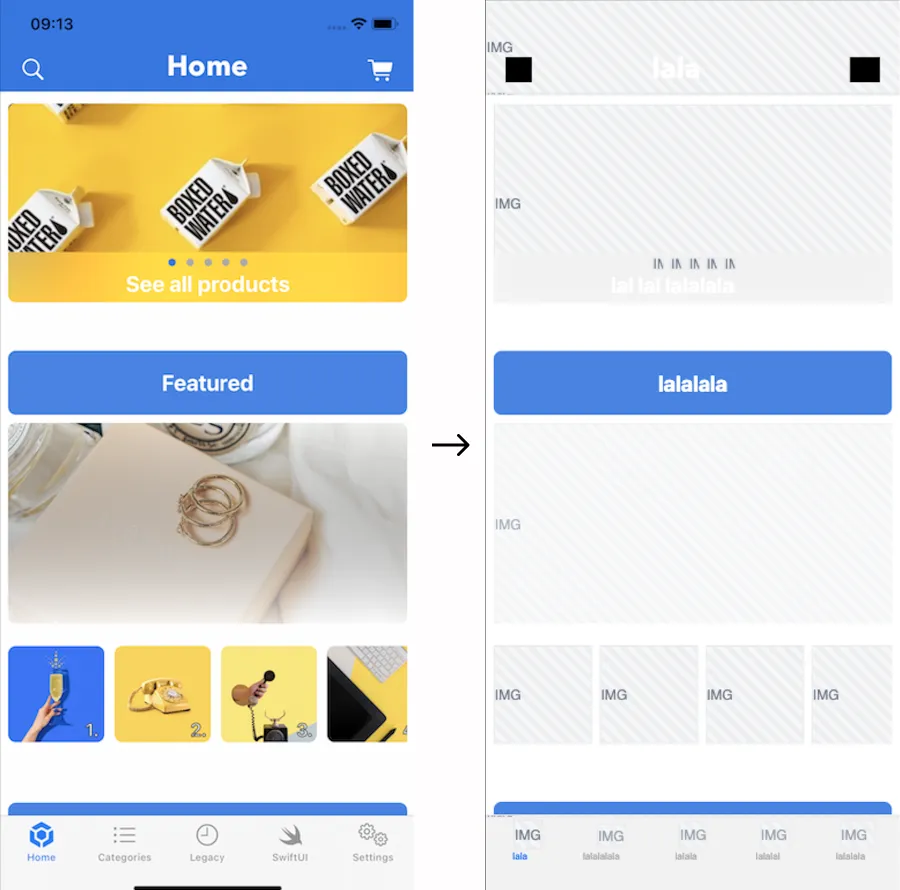
Masking rules
Section titled Masking rulesMasking rules can be applied in two ways:
- Through remote masking configuration in the CSQ Console (for admin users): These configurations are managed directly in the Console and take effect for all sessions as soon as the app is restarted or brought to the foreground See How to customize masking rules from the Data Masking tab ↗ in the Help Center.
- Using public masking APIs in the SDK (for mobile application developers): These configurations require developer implementation and will be applied only after the mobile app has gone through its release cycle.
Masking rules set via the CSQ Console or the public APIs are applied according to different priorities, as described below. The SDK determines whether a view is masked by evaluating the rules in the order specified below. Once a rule is triggered, the state is set, and subsequent rules are not applied:
| Priority | Rule | Configured via |
|---|---|---|
| 1 | The app or SDK version is fully masked | Data Masking tab in the CSQ Console ↗ |
| 2 | A component is specifically masked or unmasked | API |
| 3 | A parent is specifically masked or unmasked | API |
| 4 | Otherwise the default masking state is applied | API |
Public masking APIs
Section titled Public masking APIsDefault masking
Section titled Default maskingAll components are initially masked by default. To modify this default masking state, utilize the setDefaultMasking API, preferably within a useEffect in the root file (such as App.js). This ensures proper initialization and handling when the component mounts.
If you choose to unmask the entire app using the setDefaultMasking API, be aware that you will need to individually mask all personal data within the app. Additionally, ensure that you consistently mask personal data on new screens in the future, if necessary.
import { CSQ } from '@contentsquare/react-native-bridge';
useEffect(() => { CSQ.setDefaultMasking(false); // Unmask all content}, []);Masking/Unmasking Specific Component
Section titled Masking/Unmasking Specific ComponentTo mask or unmask specific views or components you can use the <CSQMask isSessionReplayMasked={boolean}> component. Control masking by setting the isSessionReplayMasked prop:
isSessionReplayMasked={true}(default, can be omitted): Masks all children components.isSessionReplayMasked={false}: Unmasks all children components.
In this example below, all children views inside <CSQMask> will follow the rule of the closest parent prop isSessionReplayMasked.
import { CSQMask } from '@contentsquare/react-native-bridge';
// Masks or unmasks all child components based on isSessionReplayMasked prop<CSQMask isSessionReplayMasked={true | false}>  <View>    <Text style={styles.title}>Buy my amazing merch!</Text>    <Text>      Hurry up! This offer won't be available tomorrow. Only $99.98 to get your hands on a      wonderful, brand-new, life-changing item.    </Text>  </View></CSQMask>
Masking and Unmasking behaviors on a parent view
Section titled Masking and Unmasking behaviors on a parent viewThe masking state of a parent view propagates to all nested views unless explicitly overridden by a nested <CSQMask> component. This enables flexible masking and unmasking behaviors within complex component structures.
import { CSQMask } from '@contentsquare/react-native-bridge';
// Masks or unmasks all child components based on isSessionReplayMasked prop<CSQMask isSessionReplayMasked={true}>  <View>    <Text>This content is masked.</Text>
    <CSQMask isSessionReplayMasked={false}>      <Text>This specific content is unmasked, despite the parent mask.</Text>    </CSQMask>  </View></CSQMask>
In this example, the inner <CSQMask> explicitly overrides the parent view's masking behavior.
Implementation recommendations
Section titled Implementation recommendationsAvoid wrapping the Root Navigator
Section titled Avoid wrapping the Root Navigator<CSQMask> should not wrap the Root Navigator it could cause unwanted results. If you want to set the default masking behavior for the whole application you should use CSQ.setDefaultMasking(boolean masked). <CSQMask> should be used at component level.
Avoid dynamically changing isSessionReplayMasked prop
Section titled Avoid dynamically changing isSessionReplayMasked propWhile <CSQMask> supports toggling masking at the instance level, we do not recommend changing the isSessionReplayMasked prop dynamically based on conditions like this:
<CSQMask isSessionReplayMasked={someCondition ? true : false}>...</CSQMask>This approach may lead to unexpected behavior, such as personal data leaks. Instead, structure your layout in a way that ensures predictable masking behavior without frequently modifying the isSessionReplayMasked prop dynamically.
Keeping track of what is masked
Section titled Keeping track of what is maskedThe SDK doesn't provide a list of what is currently masked. If you need to keep track of it, you probably will have to write your specific wrapper.
Advanced features for Experience Monitoring
Section titled Advanced features for Experience MonitoringSend user identifier
Section titled Send user identifierContentsquare provides the ability to search for session(s) associated with a specific visitor, based on an identifier: email, phone number, customer ID… As these values are typically personal data, from the moment the SDK is collecting the User Identifier, we immediately encode the value using a hashing algorithm so that the information is hidden and can never be accessed.
Use the following code to send a user identifier:
import { CSQ } from '@contentsquare/react-native-bridge';CSQ.sendUserIdentifier('any_identifier');When called, the SDK will log:
I/CSLIB: User identifier hashed sent {value}CSLIB ℹ️ Info: User identifier hashed sent {value}Sending a user identifier for each session
Section titled Sending a user identifier for each sessionYou may want to send the user identifier for each session. While triggering the user identifier at app launch will cover most cases, it will not be enough. A session can start when the app is put in foreground, after staying in background for more than 30 minutes. See Session definition section for more information.
That is why we also recommend sending the user identifier every time the app enters foreground.
You can use AppState API ↗ to detect foreground and trigger a sendUserIdentifier().
Limitations
Section titled Limitations- User identifier max length is 100 characters (if the limit is exceeded, the user identifier will not be handled and you will see an error message in the Console/Logcat)
- Only the first 15 user identifiers per view will be processed on server side
- The SDK will trim and lowercase user identifier
- User identifier event are not visible in Log visualizer
Integrations
Section titled IntegrationsCSQ SDK provides the ability to retrieve the link of the replay to be attached to other vendors such as Voice of Customer or Crash reporting tools.
Access Session Replay URL via metadata
Section titled Access Session Replay URL via metadataUse onMetadataChange to access the Session Replay URL through the metadata callback. The sessionReplayURL property will be updated whenever a new replay link is available.
import { CSQ } from '@contentsquare/react-native-bridge';
useEffect(() => {  const unsubscribe = CSQ.onMetadataChange((metadata) => {    if (metadata.sessionReplayURL) {      console.log('Session Replay URL:', metadata.sessionReplayURL);      // Use the replay URL for integrations      currentSessionReplayLink = metadata.sessionReplayURL;    }  });
  return () => {    if (unsubscribe) {      unsubscribe();    }  };}, []);
If you have a Contentsquare account, you can use this link to directly watch your current Session Replay on the Contentsquare Platform.
The replay will be available within 5 minutes. Only the "ended screen views" are processed (we know a screenview is ended when we start receiving data for the next screenview). This means that you will be able to replay the session up to the previous screenview if the session is still running.
Initialization
Section titled InitializationSessions can be collected for Session Replay if the Session Replay feature has been enabled for your project and the session matches the collection criteria.
The following conditions will have an impact on which sessions will be collected:
- User consent: The users have given their consent (if required)
- Collection rate: The session is being drawn for collection (see Collection rate below)
- Compatibility: The OS version is supported.
- App version: The app version is not part of the block list (see App version block list below)
Note that, when Session Replay is turned off, no content specific to Session Replay is collected whatsoever. Also note that the others CSQ tracking remains unaffected by this.
Collection rate
Section titled Collection rateData collection for Session Replay is based on a percentage of the total sessions. By default data collection for Session Replay is disabled.
During the early access phase, the percentage of collected sessions will be set to 1% at the beginning. It will then be adjusted according to:
- The traffic on your app
- The volume of collected sessions set in the contract
Compatibility
Section titled CompatibilitySee compatibility.
App version block list
Section titled App version block listThe Contentsquare team can add versions of your app in the block list to make sure Session Replay does not start on these versions. This is done when a problem is discovered on a specific version of your app, such as a Personal Data for which the masking was forgotten. This allows to keep Session Replay to work on the other app versions (especially the new ones with the fix).
Data collection
Section titled Data collectionThe SDK monitors the application lifecycle events and the view hierarchy, and generates Session Replay data from the behavior of the app, the content of the screen and the interaction of the user. These events are then locally stored, and eventually sent to our servers in batches. We then aggregate that data to create usable visual information into our Web Application, which you use to gather insights.
Network and Storage
Section titled Network and StorageBy default, Session Replay data can be sent over cellular network. If the particular context of your app or users requires a very limited impact on cellular data consumption, sending data over cellular network can be completely disabled. Once disabled, data will be sent when the device is using Wi-Fi.
Reach out to your Contentsquare contact that will make the adjustment in your project's configuration.
Storage
Section titled StorageAndroid
Before being sent, data is stored in local files on disk up to 20MB on Android. When the limit is reached, all collected data is dropped, and data collection continues. Then, every time the limit is reached again, the same process is applied.
iOS
Before being sent, data is stored in local files on disk up to 30MB on iOS. If the limit is reached, Session Replay is stopped. It will restart at the next app launch once the SDK is able to send the data.Requests
Section titled RequestsThe maximum request size is 1Mbyte.
Android
Requests are sent:
- Every 5 seconds
- On screen change
- When Replay Link API is called
iOS
Requests are sent:
- Every 10 seconds
- At app hide
- When Replay Link API is called
Performance impact
Section titled Performance impactAndroid
Section titled AndroidPerformance impact mitigation
Section titled Performance impact mitigationMost operations related to Session Replay are performed on dedicated background threads, for a minimal impact on the main thread. If CPU usage is too high for background tasks, some expensive calculations will be discarded. To make sure of this, we run performance tests on testing applications, along with the Android profiler.
If too much time is spent on the main thread, the quality level will decrease automatically: from high to medium to low to a complete stop if required. Once conditions are back to normal, quality level will be changed back to the default value set in the configuration.
We defined our network strategy to have the lesser impact on CPU, memory and data consumption of the users devices. We measure these impacts, using the Android profiler and dedicated logging system, for each release of our SDK.
You can reduce the quality level if you want to favor performance impact over quality.
Performance test results
Section titled Performance test resultsWe always strive to be non-intrusive, and transparent to the developers of the client app. We apply this rule on the performance as well. These are the technical specifics we can share on performance, if you have any questions feel free to reach out to us.
The performance results were obtained under the following conditions:
| Condition | Value |
|---|---|
| Device model | Pixel 5 |
| Android version | 34 (Android 14) |
| Quality level | High |
| Default Masking State | Disabled |
| Property | Value |
|---|---|
| Total % on main thread (CPU Profiling) | <15 % |
| Memory overhead | 15 MB |
| Session Replay data transmitted over network during 1 minute of use: | |
| - with "High quality" level | <838 KB |
| - with "Medium quality" level | <545 KB |
| - with "Low quality" level | <369 KB |
Additional info on performance test procedure
Section titled Additional info on performance test procedureCPU Usage Test We are profiling our Demo app with and without the SDK dependency by following the same use case. We are measuring the CPU peak for both versions of the app and we are computing the difference.
RAM Usage Test We are profiling our Demo app with and without the SDK dependency by following the same use case. We are measuring the RAM usage peak for both versions of the app and we are computing the difference.
Memory Leak Test We are profiling our demo app and we are using the ADB Monkey tool to create random user input events. During this time we are monitoring the RAM behavior for any anomaly. We are using the Memory Profiler to identify leaks.
Data consumption We replay a predefined, repeatable and automated user scenario on our demo app and all data sent is measured in kB/min.
JankStats If you use the alpha library from Google to monitor the jank frames and you already have some jank frames in your application (main thread overwhelmed), you can expect an increase of 1% or 2% with Session Replay activated. Data collection for Session Replay requires to perform tasks on the main thread (screen capture and view hierarchy inspection).
We always strive to be non-intrusive, and transparent to the developers of the client app. We apply this rule on the performance as well. These are the technical specifics we can share on performance, if you have any questions feel free to reach out to us.
Performance impact mitigation
Section titled Performance impact mitigationMost operations related to Session Replay are performed on background threads, for the impact on the main thread to be minimal. To make sure of this, we run performance tests on testing applications, using XCTMetric and Hitch Time Ratio measures.
We also set up mechanisms that stop Session Replay if we detect the feature is using too much memory.
We defined our network strategy to have the lesser impact on CPU and battery of the users devices. We measure these impacts, using Apple Dev Tools, for each release of our SDK.
Session Replay will also stop if we use up to 30Mbytes of local storage.
You can reduce the quality level if you want to favor performance impact over quality.
Performance test results
Section titled Performance test resultsThe following performance results were obtained under the following conditions:
| Condition | Value |
|---|---|
| Device model | iPhone 7 |
| iOS version | 15.7.8 |
| Test App built using Xcode version | 14.3.1 |
| Test App built with Swift version | 5.8 |
| Quality level | High |
| Default Masking State | Disabled |
We conducted the tests using a default Master-Detail app built using AdHoc distribution with no app thinning and with Swift symbols stripped. In the app, the SDK was making calls to the Public APIs, running and collection data in its default state.
| Property | Value |
|---|---|
| Max CPU overhead | <10% |
| Max RAM usage | <5MB |
| Session Replay data transmitted over network during 1 minute of use | |
| - with "High quality" level | <2Mbytes |
| - with "Medium quality" level | <1Mbytes |
| - with "Low quality" level | <900Kbytes |
Known limitations
Section titled Known limitationsDiscrepancy of the default iOS Font
Section titled Discrepancy of the default iOS FontThere is a discrepancy of the default iOS Font between devices and Session Replay.
Incomplete Animations on iOS
Section titled Incomplete Animations on iOSIn some cases, animations may appear incomplete or cut off in Session Replay on iOS.
Gradient and Masked View Limitations on iOS
Section titled Gradient and Masked View Limitations on iOSWhen using react-native-linear-gradient or @react-native-masked-view/masked-view libraries, elements may not be fully displayed in your Session Replays:
- Background, border, and text elements can be missing during element recreation.
- Results may differ depending on whether the default masking is set to
trueorfalse.
Troubleshooting
Section titled TroubleshootingRequests are not sent from an Android emulator / iOS simulator
Section titled Requests are not sent from an Android emulator / iOS simulatorIf you struggle to watch a replay collection on an emulator/simulator, it may be due to some network constraints applied on your computer (VPN, company network restrictions, etc.). Check your configuration or use a real device.
See following sections for more information about our endpoints and requests:
Very long session on an Android emulator / iOS simulator
Section titled Very long session on an Android emulator / iOS simulatorIt is important to remember that an app kill does not end a session. See Session definition for more information. If you leave the simulator/emulator running with the app in foreground, the session will not end, even if you are inactive. To better reflect actual end user behavior and avoid unusually long sessions (last hours), put the app in background or kill it.
Elements being unmasked when scrolling on Android
Section titled Elements being unmasked when scrolling on AndroidIf you encounter an issue where elements positioned above a ScrollView appear unmasked when scrolling, it may be due to the ScrollView clipping behavior. To resolve this, add the removeClippedSubviews={true} property to the ScrollView. This will ensure that only the visible subviews are rendered, helping prevent masking issues.
<View> <Image source={{ uri: image }} /> <ScrollView removeClippedSubviews={true}> {items.map(item => ( <ListItem key={item.id} item={item} /> ))} </ScrollView><View>