Data Syncing
Data Connect uses an ETL (Extract, Transform, Load) process to move data from Contentsquare to your data warehouse once per day.
Initial vs. Incremental syncs
Section titled Initial vs. Incremental syncsWhen you first set up Data Connect or add a new table, an initial sync copies all historical data from Contentsquare to your warehouse. This process:
- Creates the necessary tables and views
- Copies all historical data (which can take several hours or days depending on data volume)
- Runs only once per table, unless a full resync is needed
After the initial sync, Data Connect performs incremental updates during each sync window. These updates:
- Only transfer new or changed data since the last sync
- Are much faster than initial syncs
- Maintain data consistency while minimizing warehouse load
- Run daily
Configure event tables syncs
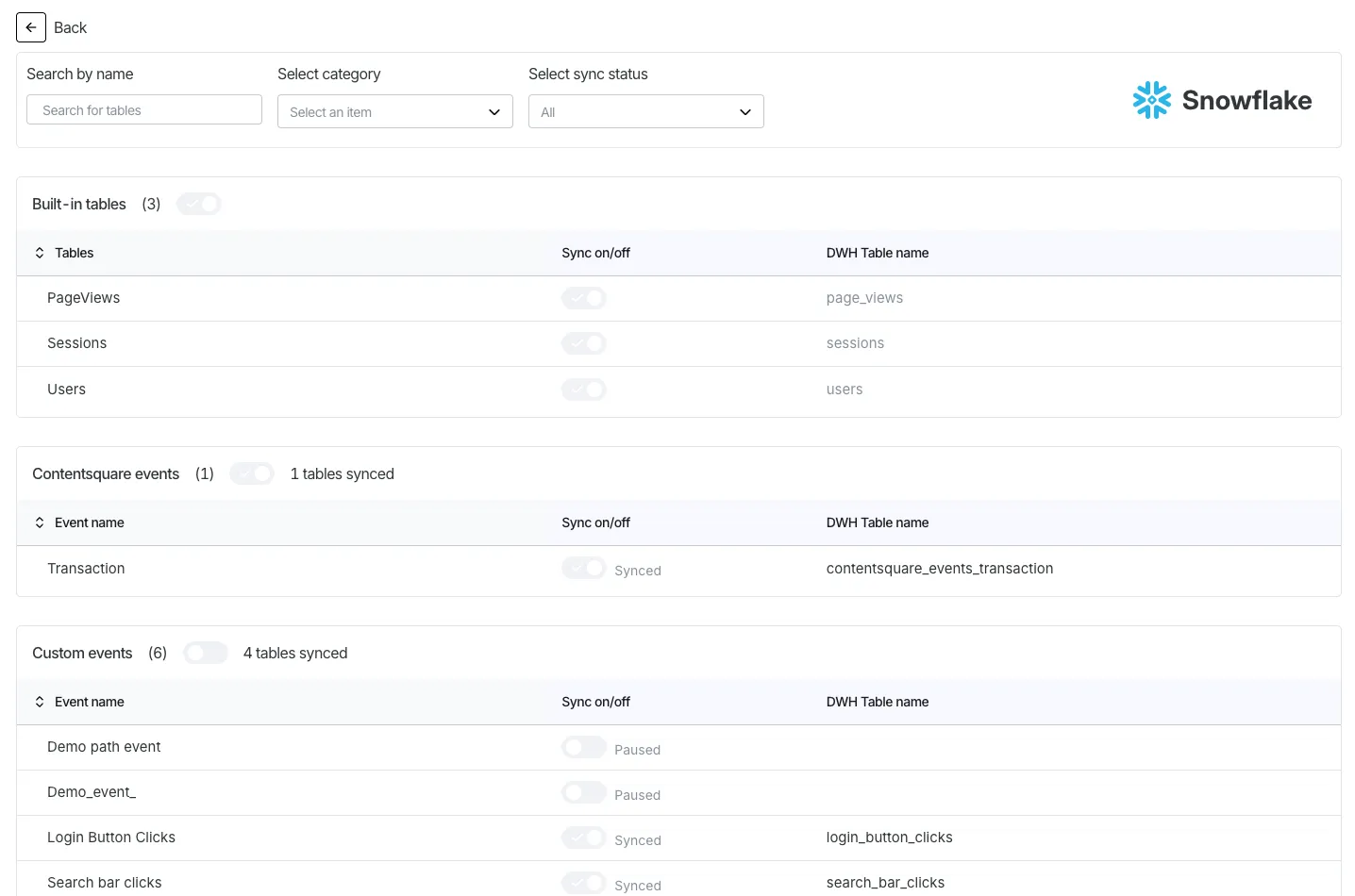
Section titled Configure event tables syncsAs a project or account admin, use Analysis setup > Data Connect > [Select your warehouse destination] > Details to define which event tables Data Connect syncs to your warehouse.
Toggle syncing of Contentsquare event tables or custom events that you created individually or in bulk.
Data Connect always syncs the following pre-built tables: users, sessions, and pageviews.
When you toggle off an event table that's in sync, the existing table remains in your warehouse but will no longer receive updates. Tables that are not synced appear greyed out.
Monitoring sync status
Section titled Monitoring sync statusMonitor the status of your Data Connect syncs through:
- The Data Connect dashboard in the Contentsquare UI
- Email notifications for failed syncs (if configured)
- Warehouse query logs showing Data Connect activity
Sync failures
Section titled Sync failuresWhen a Data Connect sync fails, Contentsquare automatically retries the sync several times. If multiple retries fail, you'll receive a notification.
Work through these steps to identify the cause:
- Check for error messages in the Data Connect dashboard
- Verify warehouse permissions and quotas
- Look for schema conflicts
- Review recent changes to your Contentsquare implementation
- Contact Contentsquare support with specific error messages and timestamps
Once resolved, syncs will resume from where they left off.
Managing schema changes
Section titled Managing schema changesAs your Contentsquare implementation evolves (adding new events or properties), Data Connect handles schema evolution automatically:
| Change | Result |
|---|---|
| New event defined | A new table is created for the event |
| New property added | A new column is added to the appropriate table (event table for event properties, users table for user properties) |
| User property values updated | Corresponding rows in the users table are updated |
| Anonymous user identified | The user is migrated: the users table and all event tables referencing the anonymous user_id are updated |
| Property type update | Handled according to warehouse-specific rules |
Renaming events
Section titled Renaming eventsWhen you modify an event name in the Contentsquare interface, the behavior differs by destination.
For warehouses (BigQuery, Redshift, Snowflake, Databricks):
- The existing table is dropped
- A new table is created with the updated name
- Historical data is backfilled into the new table
- The
all_eventsview is automatically updated - Queries using the old table name will fail
For S3:
- New syncs use the updated folder name:
_heap_table_name=new_event_name - Historical data remains under the old folder name
- You must update your ETL process to handle the name change
After renaming an event:
- Update downstream queries, dashboards, and ETL jobs
- Rename events during low-traffic periods to minimize disruption
- Document event name changes for your team
- Use the
event_metadatatable to track naming history
Data retention and historical data
Section titled Data retention and historical dataData Connect syncs all data available based on your account's retention settings. If data is deleted in Contentsquare, it is not automatically removed from your warehouse — you need to delete it manually.
Best practices
Section titled Best practicesTo ensure smooth operation of your Data Connect pipeline:
- Monitor sync status regularly: Check that syncs are completing successfully
- Plan for schema changes: Consider potential impacts when adding new properties
- Test new warehouse queries: Verify queries after schema changes
- Manage warehouse resources: Schedule heavy queries outside of the daily sync window
- Document custom tables: Maintain documentation for any views or derived tables you create
- Set up alerting: Configure monitoring for sync failures
- Manage data volume: Archive or partition historical data as needed