Track Screens
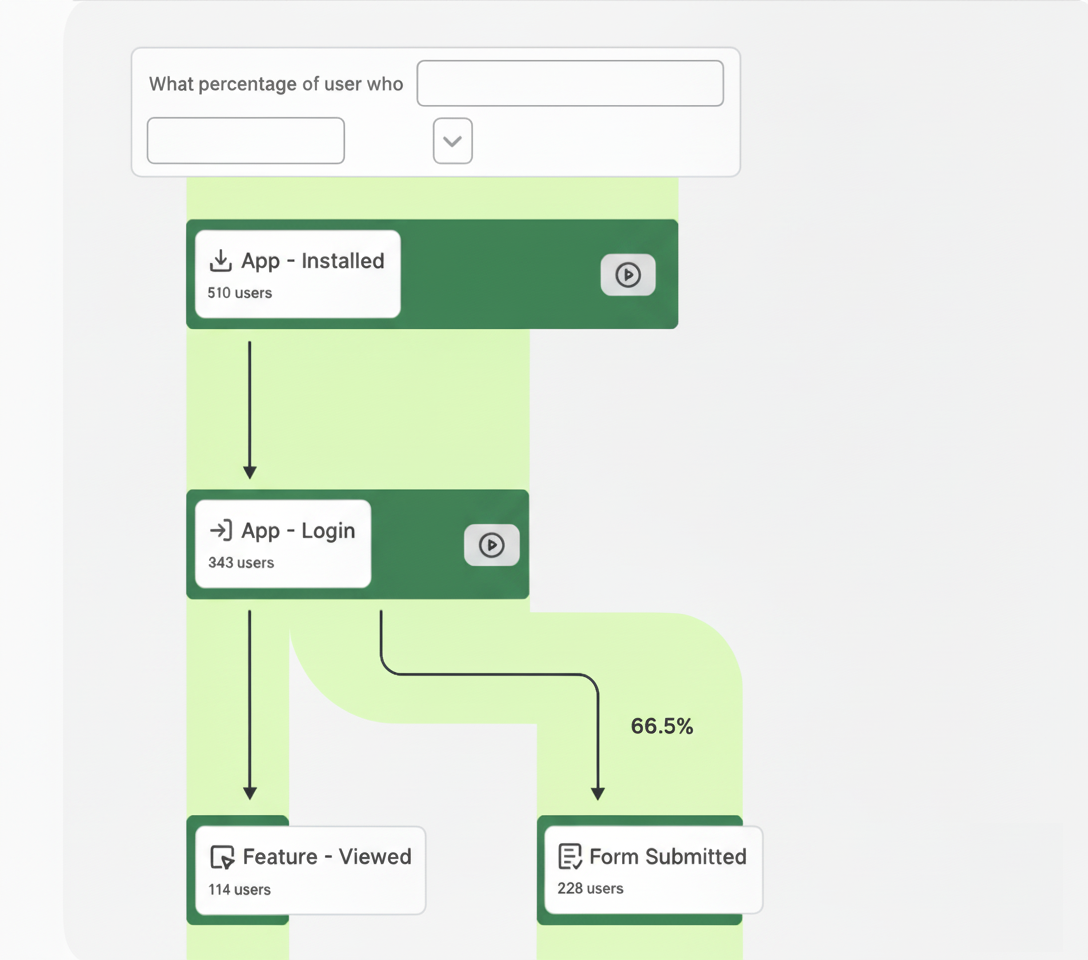
Contentsquare aggregates user behavior and engagement at the screen level. To leverage our full range of features, you must implement effective screen tracking.
You can set this up:
- Manually, by calling a dedicated API.
- Automatically, by using our observer to track screens based on changes in the navigation stack.
Track screens automatically
Section titled Track screens automaticallyAutomatic screen view tracking can be done using the CSQNavigatorObserver. This will observe the navigation stack of the application and log screen events accordingly.
This observer can be attached to any WidgetApp (like MaterialApp, CupertinoApp) or to a RouterConfig
import 'package:contentsquare/csq.dart';
MaterialApp(  navigatorObservers: [    CSQNavigatorObserver(),  ],);
import 'package:contentsquare/csq.dart';
Navigator( observers: [ CSQNavigatorObserver(), ],);import 'package:contentsquare/csq.dart';
final _goRouter = GoRouter( observers: [ CSQNavigatorObserver(), ], routes: [...],);
MaterialApp.router( routerConfig: _goRouter,);The CSQNavigatorObserver can be configured with the following arguments:
ExcludeRouteFromTracking
Section titled ExcludeRouteFromTrackingAn optional callback function that determines whether a specific route should be excluded from tracking. The function takes a Route as input and returns a bool.
Use this function to selectively exclude certain routes from automatic tracking by returning true for those routes.
import 'package:contentsquare/csq.dart';
CSQNavigatorObserver(  excludeRouteFromTracking: (route) {    // Exclude a specific route name    if (route.settings.name == '/myRoute') return true;
    // Exclude popup routes (menus, popups, dialogs)    if (route is PopupRoute) return true;
    // Exclude dialog routes (AlertDialog, showDialog)    // Many dialogs inherit from PopupRoute, but this is extra safety:    if (route.runtimeType.toString().contains('DialogRoute')) return true;
    // Exclude full-screen dialogs    if (route is PageRoute && route.fullscreenDialog == true) return true;
    return false;  },)
By default, all routes are tracked.
ScreenNameProvider
Section titled ScreenNameProviderAn optional callback function used to customize the screen name for a given route. The function takes a Route as input and returns a String representing the desired screen name.
Use this function to define custom screen names for specific routes.
import 'package:contentsquare/csq.dart';
CSQNavigatorObserver( screenNameProvider: (route) { final screenName = _formatScreenName(route.settings.name); return screenName; },)CustomVarsProvider
Section titled CustomVarsProviderAn optional callback function used to provide a list of custom variables for a specific route. The function takes a Route as input and returns a List<CustomVar>.
Use this function to attach custom variables to specific routes for tracking purposes.
import 'package:contentsquare/csq.dart';
CSQNavigatorObserver(customVarsProvider: _customVarsForRouteProvider,)
List<CustomVar>? _customVarsForRouteProvider(Route<dynamic> route) {final routeName = route.settings.name;final productPageRegex = RegExp(r'/product/(\d)+');
if (routeName == null) {  return [];}
// Check for product detail routesif (productPageRegex.hasMatch(routeName)) {  final productId = productPageRegex.firstMatch(routeName)?.group(1);  if (productId != null) {    return [      CustomVar(index: 1, name: 'productId', value: productId),    ];  }}
// Check for a specific screenif (routeName == '/profile') {  return [    CustomVar(index: 2, name: 'screenType', value: 'profileScreen'),  ];}return null;}
Track screens manually
Section titled Track screens manuallyCall the trackScreenview(screenName: String) API when a screen appears to track screens manually. When you call the API, the SDK logs a screenview event which identifies the new screen with the screen name you provided.
import 'package:contentsquare/csq.dart';
await CSQ().trackScreenview(screenName: 'ScreenName');
Back navigation handling
Section titled Back navigation handlingBack navigation is not automatically tracked by the SDK.
When back navigation occurs the trackScreenview method should be manually invoked with the screen name of the previous screen.
Example with a custom navigation observer
Section titled Example with a custom navigation observerimport 'package:contentsquare/csq.dart';
class CustomNavigationObserver extends NavigatorObserver {
@override void didPop(Route route, Route? previousRoute) { ... final previousScreenName = // get the previous screen name CSQ().trackScreenview(screenName: previousScreenName); ... }
}Screen name handling
Section titled Screen name handlingThe screen name length is not limited on the SDK side. However, it's important to note that there is a limit of 2083 characters on the server side. Ensure that screen names do not exceed this limit to prevent any issues with data transmission and processing.
Handling Screen Views When App Returns from Background
Section titled Handling Screen Views When App Returns from BackgroundThe Contentsquare SDK automatically triggers a screen view when the app is moved to the background and subsequently brought back to the foreground. This occurs provided that a screen view with a screen name has been triggered previously. In such cases, the SDK will use the last screen name that was set.
Implementation recommendations
Section titled Implementation recommendationsFrom a functional standpoint, we expect a screenview to be sent:
- When the screen becomes visible
- When a screen is popped, returning the user to the previous screen
- If you consider a modal or pop-up as screens, than when they become visible and when they are closed
Achieving this can be facilitated through a NavigatorObserver ↗. This observer can be used to listen to route changes and send screenviews accordingly.
How to name screens
Section titled How to name screensAs a general rule, aim to keep distinct screen names under 100 characters. Choose names that provide a comprehensive understanding of the screen's content or purpose. This will help you to identify the screen in the Contentsquare interface.
Separate words with space, dash or underscore characters
Section titled Separate words with space, dash or underscore charactersIf you want to create screen names with multiple words, it's best to separate them using spaces, dashes, or underscores. Contentsquare will handle the formatting automatically.
Example: For a sub-category list of a retail app, use Home and Living - Home Furnishings instead of homeLivingHomeFurnishings
Screen name limitations
Section titled Screen name limitationsUse screen template/layout names
Section titled Use screen template/layout namesAs a general guideline, opt for names that describe the screen template or layout rather than focusing on specific content (data). This approach will minimize the number of unique screen names, making Contentsquare easier to use and reducing the potential for Personal Data transmission.
Examples of screen types falling into this category include Product Detail, Event Detail, Conversation/Chat, and User Profile.
Screens with multiple states/layouts
Section titled Screens with multiple states/layoutsScreens can have different layouts or states depending on the user context. In this case, append its value to the screen name.
Home screen
| State | Screen name |
|---|---|
| App landing layout | Home |
| Women products layout | Home - Women |
| Men products layout | Home - Men |
| Sales layout | Home - Sales |
Product Detail screen (PDP)
| State | Screen name |
|---|---|
| Users on a Top for Women PDP | PDP - Clothing - Women - Tops |
| Users on a Microwave PDP | PDP - Kitchenware - Electrics - Microwave |
| Users on a Hotel details screen | PDP - Holiday type - Season - Board |
User account screen
| State | Screen name |
|---|---|
| Overview | My Account - Dashboard |
| Order history | My Account - Order history |
| Returns | My Account - Returns |
Search screen
| State | Screen name |
|---|---|
| Search | Search |
| Search results for "Skincare" products | Search - Skincare |
| Search results error screen | Search - Error |
Cart screen
| State | Screen name |
|---|---|
| Empty cart | Cart - Empty |
| Items have been added to the cart | Cart - Populated |
| Issues with availability or pricing | Cart - Error |
Checkout screen
| State | Screen name |
|---|---|
| User provides name, surname, and date of birth | Checkout - User Details |
| User provides shipping address | Checkout - Shipping Details |
| User inputs their credit card information | Checkout - Payment |
Troubleshooting
Section titled TroubleshootingAutoRoute package support
Section titled AutoRoute package supportIf you're using the AutoRoute package ↗, refer to the CSQNavigatorAutoRouteObserver documentation for automatic screen tracking support, including tab navigation.
Pageview widget
Section titled Pageview widgetPageView widgets sometimes are used to build swipeable screens such as onboarding flows, multi-step forms, or carousels. However, because PageView navigation does not push new routes to the navigation stack, navigator observers are not triggered when pages change.
To ensure correct tracking, each page transition must be tracked manually using the onPageChanged callback.
For example, when using PageView.builder, you can track each page as an individual screen:
import 'package:contentsquare/csq.dart';
class PageViewTrackingExample extends StatelessWidget {  const PageViewTrackingExample({super.key});
  final _controller = PageController();
  // Define meaningful screen names for each page  final _pageNames = const <String>[    'onboarding_step_1',    'onboarding_step_2',    'onboarding_step_3',  ];
  @override  Widget build(BuildContext context) {    return PageView.builder(      controller: _controller,      itemCount: _pageNames.length,      onPageChanged: (index) {        // Track screen view manually for each page change        CSQ().trackScreenview(screenName: _pageNames[index]);      },      itemBuilder: (_, index) {        return OnboardingPage(step: index);      },    );  }}
PageBuilder
Section titled PageBuilderIf you use a pageBuilder in your routes, make sure to set the page .name.
Example using GoRoute:
import 'package:contentsquare/csq.dart';
GoRoute(  path: 'checkout',  name: 'Checkout Screen',  pageBuilder: (context, state) => MaterialPage(
    name: 'Checkout Screen',    key: ValueKey(state.pathParameters),    fullscreenDialog: true,    child: const CheckoutScreen(),  ),),
TabBar
Section titled TabBarTabBar views are commonly tracked as individual screens. However, most TabBar implementations push the route to the navigation stack only during initialization, which can make it challenging to properly track navigation events for each tab change.
To track tab changes correctly, you need to manually call trackScreenview when the active tab changes. Here's an example using TabController:
import 'package:contentsquare/csq.dart';
class TabBarExample extends StatefulWidget {  const TabBarExample({super.key});
  @override  State<TabBarExample> createState() => _TabBarExampleState();}
class _TabBarExampleState extends State<TabBarExample>    with SingleTickerProviderStateMixin {  late TabController _tabController;
  // Define meaningful screen names for each tab  final _tabNames = const <String>[    'home_tab',    'search_tab',    'profile_tab',  ];
  @override  void initState() {    super.initState();    _tabController = TabController(length: _tabNames.length, vsync: this);
    // Track initial tab    CSQ().trackScreenview(screenName: _tabNames[_tabController.index]);
    // Listen to tab changes    _tabController.addListener(() {      if (!_tabController.indexIsChanging) {        CSQ().trackScreenview(screenName: _tabNames[_tabController.index]);      }    });  }
  @override  void dispose() {    _tabController.dispose();    super.dispose();  }
  @override  Widget build(BuildContext context) {    return Scaffold(      appBar: AppBar(        bottom: TabBar(          controller: _tabController,          tabs: const [            Tab(icon: Icon(Icons.home), text: 'Home'),            Tab(icon: Icon(Icons.search), text: 'Search'),            Tab(icon: Icon(Icons.person), text: 'Profile'),          ],        ),      ),      body: TabBarView(        controller: _tabController,        children: const [          HomeTab(),          SearchTab(),          ProfileTab(),        ],      ),    );  }}