---
title: Track WebViews - React Native
description: Track webviews with the Contentsquare React Native SDK
source_url:
html: https://docs.contentsquare.com/en/csq-sdk-react-native/experience-analytics/track-webviews/
md: https://docs.contentsquare.com/en/csq-sdk-react-native/experience-analytics/track-webviews/index.md
---
> ## Documentation index
> Fetch the complete documentation index at: https://docs.contentsquare.com/llms.txt
> Use this file to discover all available pages before exploring further.
WebView tracking links the CSQ SDK to the JavaScript tag running inside your WebViews to support analytics and Session Replay for web content displayed within your app.
## Set up the tag for WebView tracking
**If tag auto-injection is enabled for your project, you can skip this step**, because the Contentsquare SDK adds the tag to your WebViews for you. Tag auto-injection is currently in beta. If you're not sure whether it's enabled, check with your Contentsquare contact.
If tag auto-injection is not enabled, add the tag to your pages using one of the following methods:
HTML code
To set up the tracking tag on your website, add the following lines of code on every page you want to analyze, either at the end of the `` tag.
Make sure to add the `trackPageview` call: without it, your WebView pages are not collected as pageviews.
```html
```
This code creates a function which adds an asynchronous call to a script and then run the function. This is a way to avoid other elements loading being blocked on the page, and reduces the impact of the tag on your website's performance.
Google Tag Manager (Custom HTML)
If your page loads in both a web and WebView environment, you should use a variable to determine whether the page is running in a WebView context before integrating the tracking tag.
1. Add a new tag on your workspace. 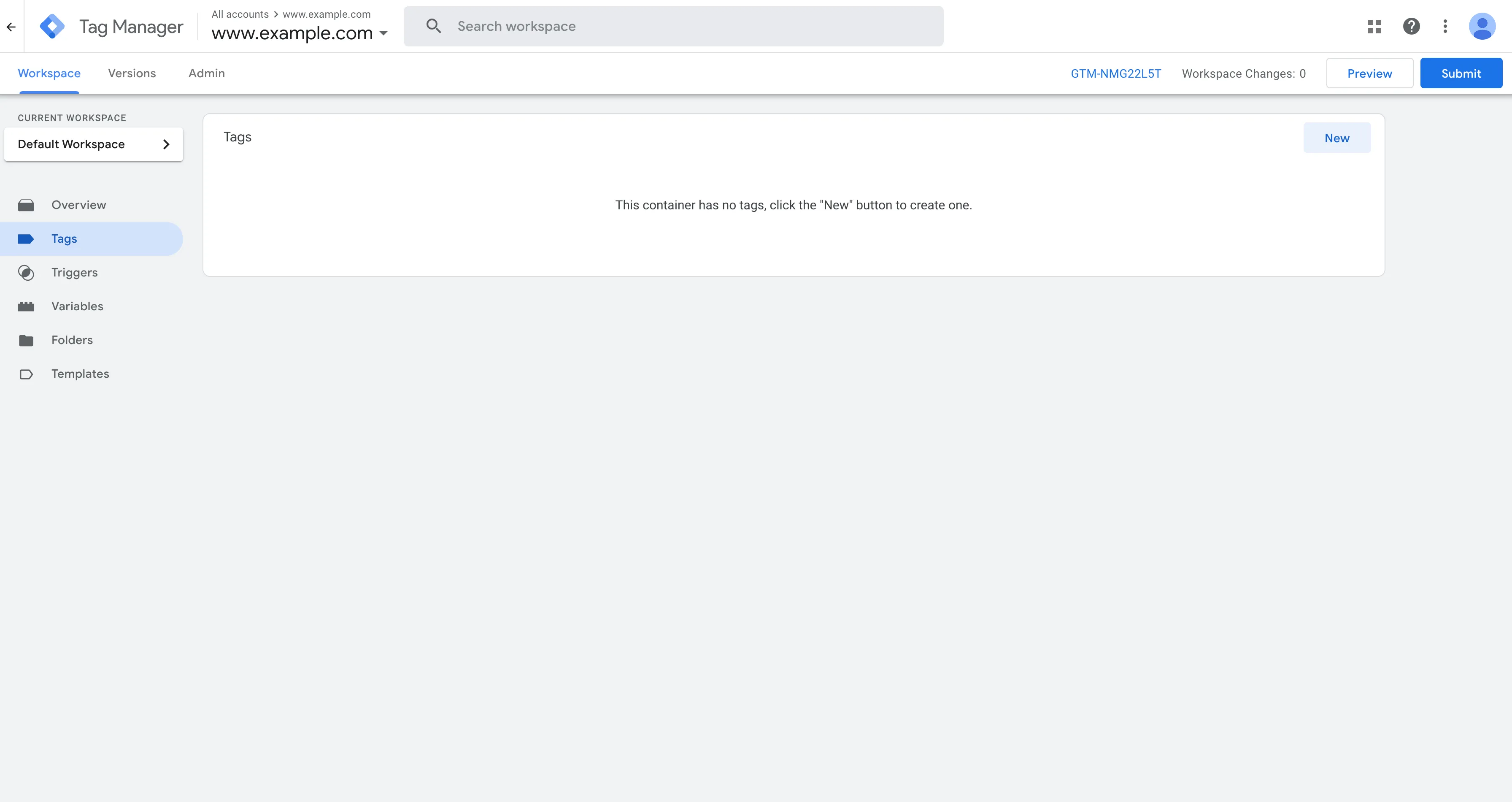
2. Select "Choose a tag type to begin setup…". 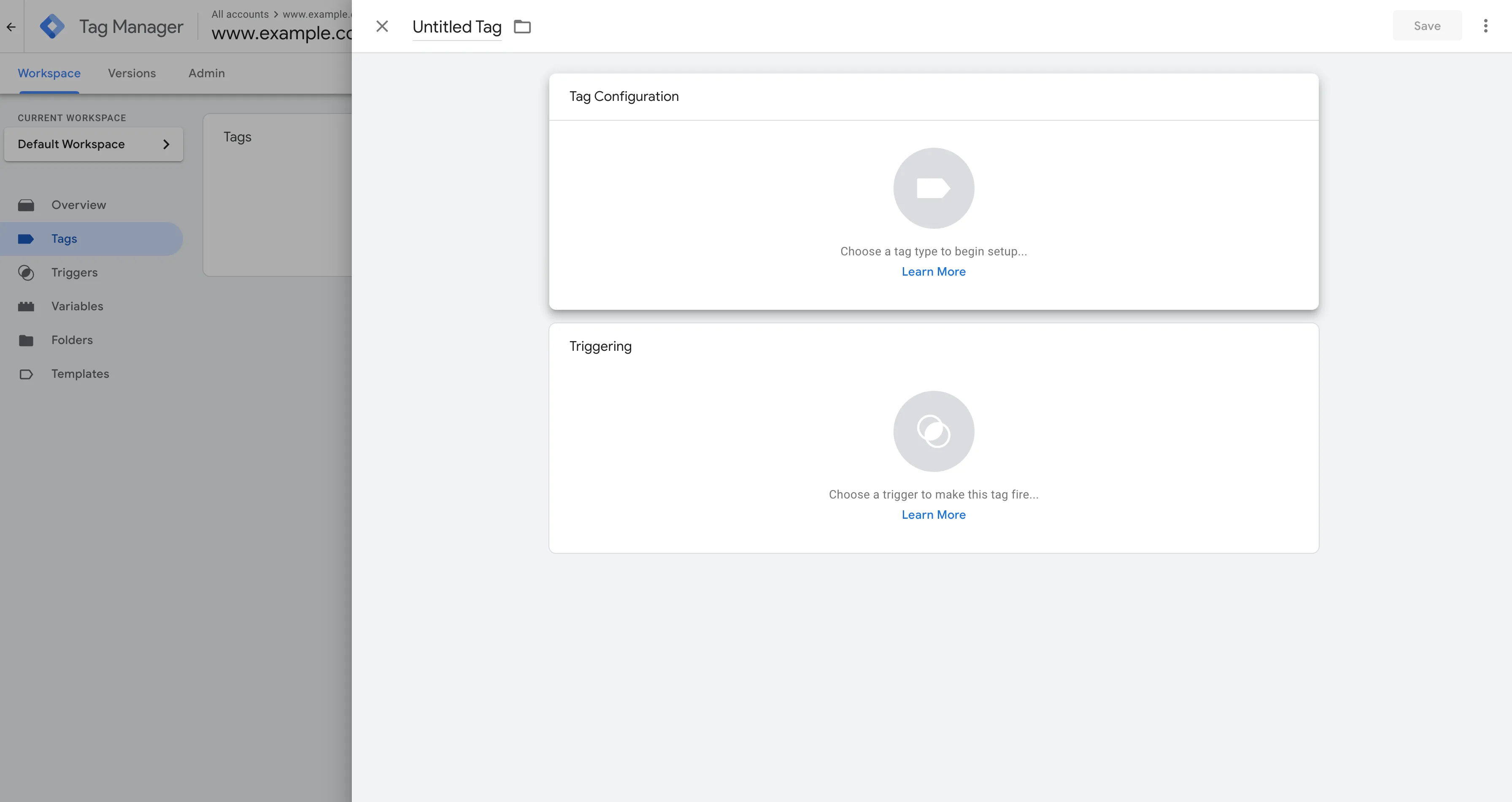
3. In the list, pick the "Custom HTML" tag. 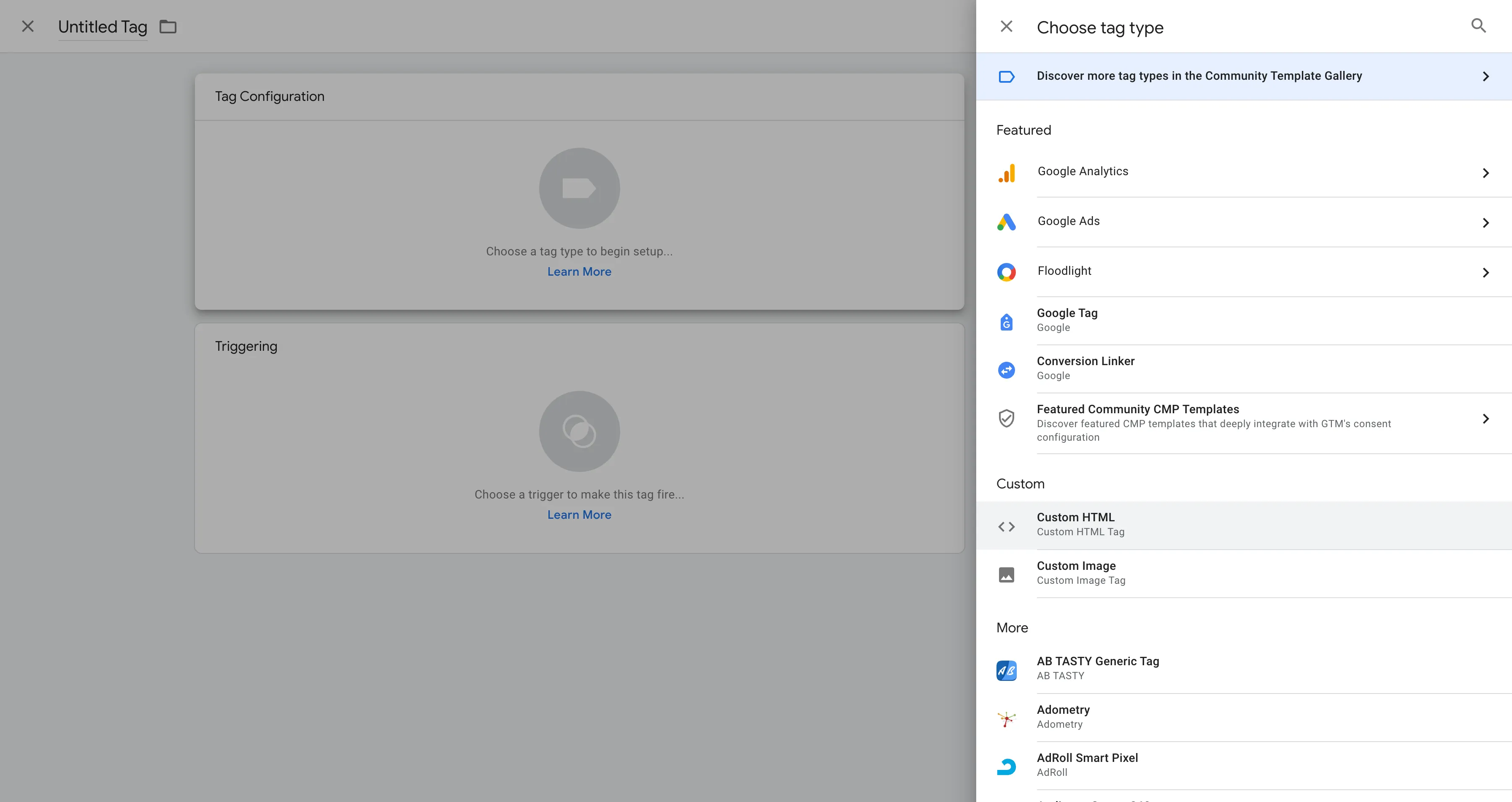
4. Copy and paste the following code in the Tag Configuration HTML section. Make sure to add the `trackPageview` call: without it, your WebView pages are not collected as pageviews.
```html
```
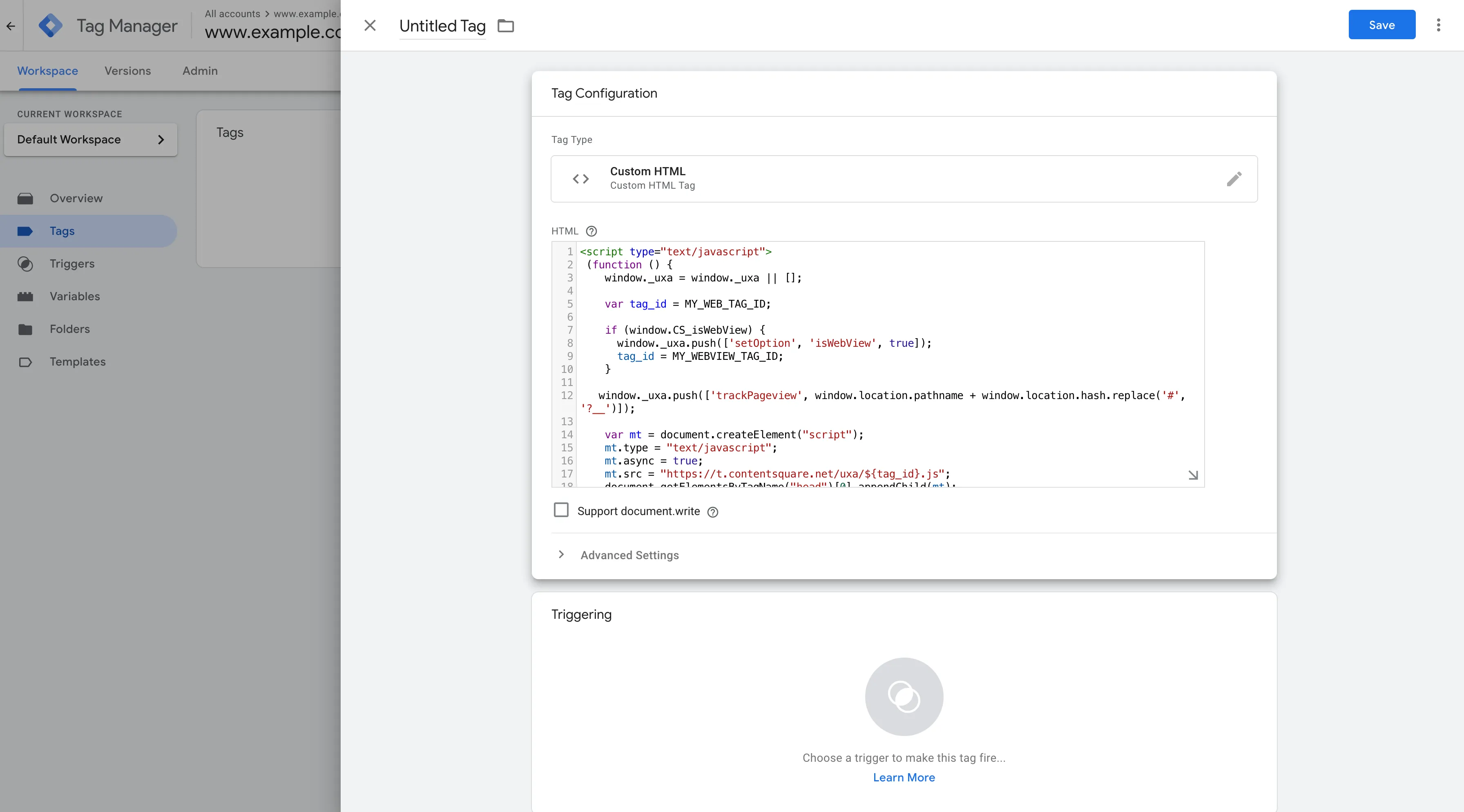
5. Select "Choose a trigger to make this tag fire…" and pick "All Pages" from the list. 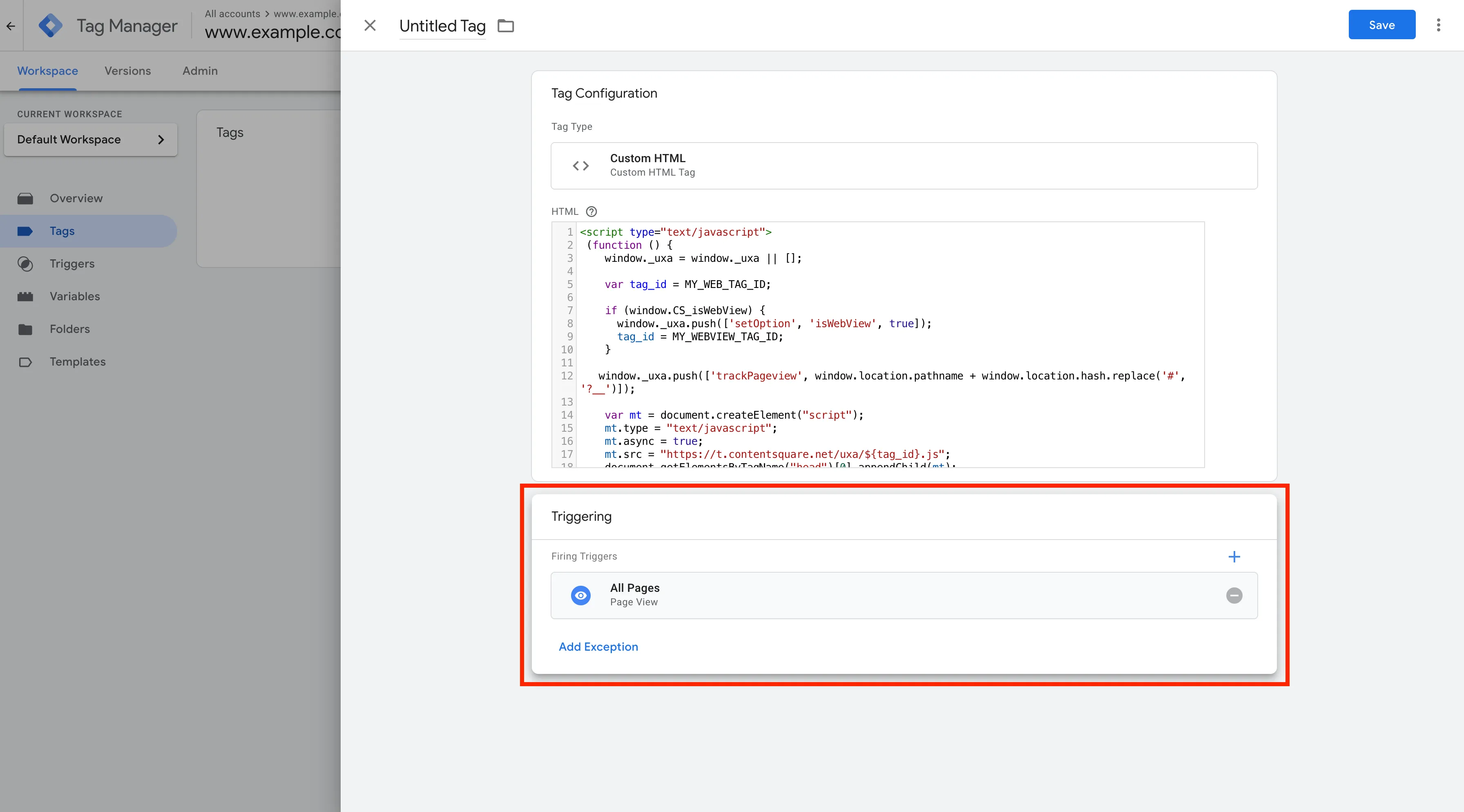
> **Note**
>
> The snippet detects WebViews for you. If you prefer, you can use your own way of detecting WebViews in addition to it.
## Register your WebViews
> **React Native compatibility**
>
> Contentsquare only supports the [`react-native-webview` ↗](https://github.com/react-native-webview/react-native-webview) library for tracking WebView components in React Native apps.
>
> Contentsquare's implementation relies on `react-native-webview` internals and is not compatible with other WebView implementations.
Wrap your `react-native-webview` `WebView` component with the `CSQWebView` component to inject the Contentsquare JavaScript WebView interface, which bridges the CS Tag in WebView mode and the SDK. `CSQWebView` handles the rest:
```jsx
import { WebView } from "react-native-webview";
import { CSQWebView } from "@contentsquare/react-native-bridge";
const WebviewWithTagScreen = () => {
return (
<>
);
};
export default WebviewWithTagScreen;
```
## Validate WebView tracking
* Android
**On the native side**
There is no way of validating the implementation on the native side only.
**On the web side**
Once you arrive on the screen with the tracked WebView, you should see the following logs in sequence:
1. **JS interface injected:**
```plaintext
[WebView] Js interface added to the webView
```
2. **WebView registered:**
```plaintext
[WebView] WebView attached
```
3. **Tag configuration received — confirms successful tag to SDK communication:**
```plaintext
[WebView JS log] (TAG_CONFIGURATION) [Config]
```
4. **Tracking active:**
```plaintext
[WebView] onWebViewTrackingReady
```
Specific logs are then emitted for:
* Page views fired by the WebView Tracking Tag in the same format as for screen views: `Screenview - Screen name: {{page name given}} - Screen number: 11`
* Taps and swipes detected by the WebView Tracking Tag in the same format as for defaults taps and swipe but with the target matching an HTML DOM element value: `Tap - Target: {Last view info: div:eq(0)} - Unresponsive: false`
**_Going further:_** If you still have doubt, you can look for logs by filtering on `WebViewEventProcessor`. Their presence will confirm that it is well implemented on both web and native sides.
* iOS
**On the native side**
Once you open the screen with the tracked WebView in your app, you should see the following logs in sequence:
1. **WebView registered:**
```plaintext
CSLIB ℹ️ Info: [WebView] Registering WebView on native side for page: [URL]. Waiting for Web Tracking Tag messages…
```
2. **Web page loaded:**
```plaintext
CSLIB ℹ️ Info: [WebView] Navigated to new page: [URL]. Waiting for Web Tracking Tag messages…
```
**On the web side**
Once the Web Tracking tag runs in the web page, you should see the following logs in sequence:
1. **JavaScript bridge detected:**
```plaintext
CSLIB ℹ️ Info: [WebView] CSJavascriptBridge is detected on page: [URL]
```
2. **Tag configuration received — confirms successful tag to SDK communication:**
```plaintext
CSLIB ℹ️ Info: [WebView JS log] (TAG_CONFIGURATION) [Config]
```
Specific logs are then emitted for:
* Page views sent through the Web Tracking Tag, displayed the same way as native screen views:
```plaintext
CSLIB ℹ️ Info: Screenview - Screen name: "{{page name given}}" - Screen number: 11
```
* Taps and swipes detected by the Web Tracking Tag, displayed the same way as taps and swipe on native elements, but the end of the target contains HTML DOM elements:
```plaintext
CSLIB ℹ️ Info: Tap - Target: ...>UIViewControllerWrapperView:eq(0)>UIView:eq(0)>WKWebView:eq(0)|webview|img#picture-holder
```
## Known limitations
> **For iOS only**
>
> An issue has been identified with the `goBack()` method of the React Native WebView component. When this method is called, it may not be registered by Session Replay in some cases, leading to some webview pages not being replayed correctly.
## Migrating from version 4.X.X to 6.X.X
If you are migrating from a previous version of the Contentsquare React Native SDK, update your `CSWebView` implementation to use `CSQWebView`:
```jsx
import React from "react";
import { WebView } from "react-native-webview";
import { CSQWebView } from "@contentsquare/react-native-bridge";
const WebviewWithTagScreen = () => {
return (
// This method is deprecated
{
return (
);
}}
/>
);
};
export default WebviewWithTagScreen;
```
## Advanced WebView tracking
After the initial tag setup, the Contentsquare tag in your WebViews can do more: collect user consent, track pageviews and transactions, include WebViews in Session Replay, collect errors for Error Analysis, and send Product Analytics events.
See [Advanced WebView tracking](https://docs.contentsquare.com/en/webview-tracking-tag/) for the prerequisites and the full list of topics.
```json
{"@context":"https://schema.org","@type":"TechArticle","headline":"Track WebViews","description":"Track webviews with the Contentsquare React Native SDK","url":"https://docs.contentsquare.com/en/csq-sdk-react-native/experience-analytics/track-webviews/","inLanguage":"en","dateModified":"2026-10-14T22:32:37+02:00","publisher":{"@type":"Organization","name":"Contentsquare","url":"https://www.contentsquare.com/"},"isPartOf":{"@type":"WebSite","@id":"https://docs.contentsquare.com/#website","name":"Contentsquare Technical Documentation","url":"https://docs.contentsquare.com/"}}
```