---
title: In-app features - iOS
description: Enable testing and debugging capabilities within your iOS app using in-app features for enhanced development workflow
lastUpdated: 02 October 2025
source_url:
html: https://docs.contentsquare.com/en/csq-sdk-ios/experience-analytics/in-app-features/
md: https://docs.contentsquare.com/en/csq-sdk-ios/experience-analytics/in-app-features/index.md
---
Implemented Contentsquare with our Classic SDK? Switch back to [Classic SDK](https://docs.contentsquare.com/en/ios/) docs.
Alongside its tracking capabilities, the SDK embeds some features aimed at Contentsquare users such as [Snapshot Capture](https://docs.contentsquare.com/en/react-native/in-app-features/#snapshot-capture) and [SDK Logs](#debugging-and-logging).
## Implement in-app features
In order to allow Contentsquare users to enable in-app features, you must perform 2 implementation tasks:
1. [Add the custom URL scheme in your app Info](#1-add-the-custom-url-scheme-in-your-app-info)
2. [Call the SDK when the app is launched via a deeplink](#2-call-the-sdk-when-the-app-is-launched-via-a-deeplink)
### 1. Add the custom URL scheme in your app Info
You have to allow your app to be opened via a custom URL scheme which can be done using one of the following methods:
#### Xcode
1. Open your project settings
2. Select the app target
3. Select the `Info` settings
4. Scroll to `URL Types`
5. Set the URL scheme to `cs-$(PRODUCT_BUNDLE_IDENTIFIER)`
#### Text editor
1. Open the `Info.plist` of your project
2. Add the following snippet:
```xml
CFBundleURLTypes
CFBundleURLSchemes
cs-$(PRODUCT_BUNDLE_IDENTIFIER)
```
### 2. Call the SDK when the app is launched via a deeplink
Depending on the project, there are multiple ways to handle the deeplink opening. Choose the method matching your project structure:
### Enable in-app features
Once the implementation is done, in-app features can be enabled in different ways:
#### Scan the QR code
If you have access to the Contentsquare platform, you can open the in-app features modal from the menu and scan the QR code displayed with your iPhone.

#### Use the custom link for simulator
If you have access to the Contentsquare platform, you can open the in-app features modal from the menu and select “Copy link” (to copy the deeplink) and paste it in Safari on your Simulator to trigger the in-app features.
Note
If you don’t have access to the Contentsquare platform, you can ask the Contentsquare team to share the link with you.
#### Using the Terminal
In a Terminal console, open an URL in your current simulator with the following command (replacing `CUSTOM_LINK` with yours):
```shell
xcrun simctl openurl booted "CUSTOM_LINK"
```
### Debugging and Logging
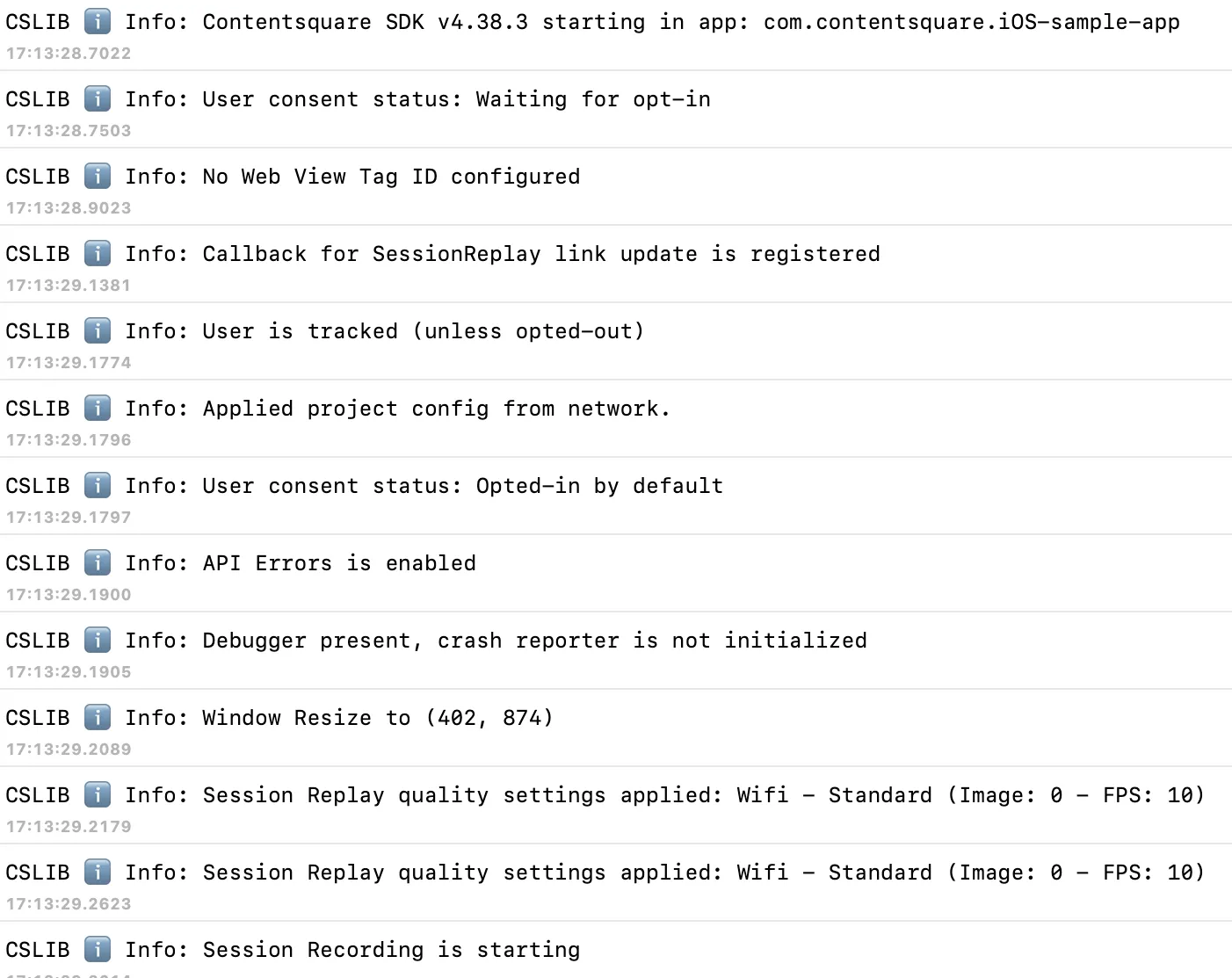
Contentsquare provides Logging capabilities that allow you to see the raw event data logged by your app in the macOS Console App, Xcode or in the Contentsquare platform. Use this for validation purposes during the instrumentation phase of development and can help you discover errors and mistakes in your analytics implementation and confirm that all events are being logged correctly.
#### Viewing Logs in Xcode or the macOS Console app
By default, almost all logs are disabled. There is only one log that is always visible to notify that the SDK has started:
```plaintext
CSLIB ℹ️ Info: Contentsquare SDK v{{SDKversionNumber}} starting in app: {{bundleID}}
```
In order to enable all logs, activate [in-app features](#enable-in-app-features). Logging is directly linked to in-app features state: it starts when in-app features are enabled and stops when you disable in-app features.
Note
You can also enable logs in the code by changing the log level to Verbose: `CSQ.debug.logLevel = .verbose`.
To view logs:
1. Make sure the device you are using is plugged to your Mac or is on the same Wi-Fi network (skip this step if you are using a simulator)
2. Start the macOS Console app *(make sure that info messages are included: [Choose Action > Include Info Messages ↗](https://support.apple.com/guide/console/customize-the-log-window-cnsl35710/mac))* or Xcode.
3. Filter logs on `CSLIB`
#### Viewing logs in the Contentsquare platform
To view logs directly on the platform, you can use Log visualizer. Log visualizer is a helper tool to see SDK logs without logging tools. It requires having platform access for your project and enabling in-app features. See the [SDK Log Visualizer Help Center Article ↗](https://support.contentsquare.com/hc/en-us/articles/37271699876625) for more information.
### Snapshot Capture
In order to unlock the full data-visualization capabilities of Contentsquare, the SDK provides a way to capture snapshots of your app screens. These snapshots can only be taken by Contentsquare’s users on their device. They are not captured from your end-users device. It means your Personal Data is safe, as long as you use a test user account.
Warning
For snapshot capture to work, the session has to be tracked (included in tracked users and not opted-out) and a first screenview event has to be sent before.
Note
Snapshots require a screenview event to be triggered before they can be captured.

Snapshots are used in the **Zoning Analysis** module to look at zone-level metrics (Tap rate, Swipe rate…):